
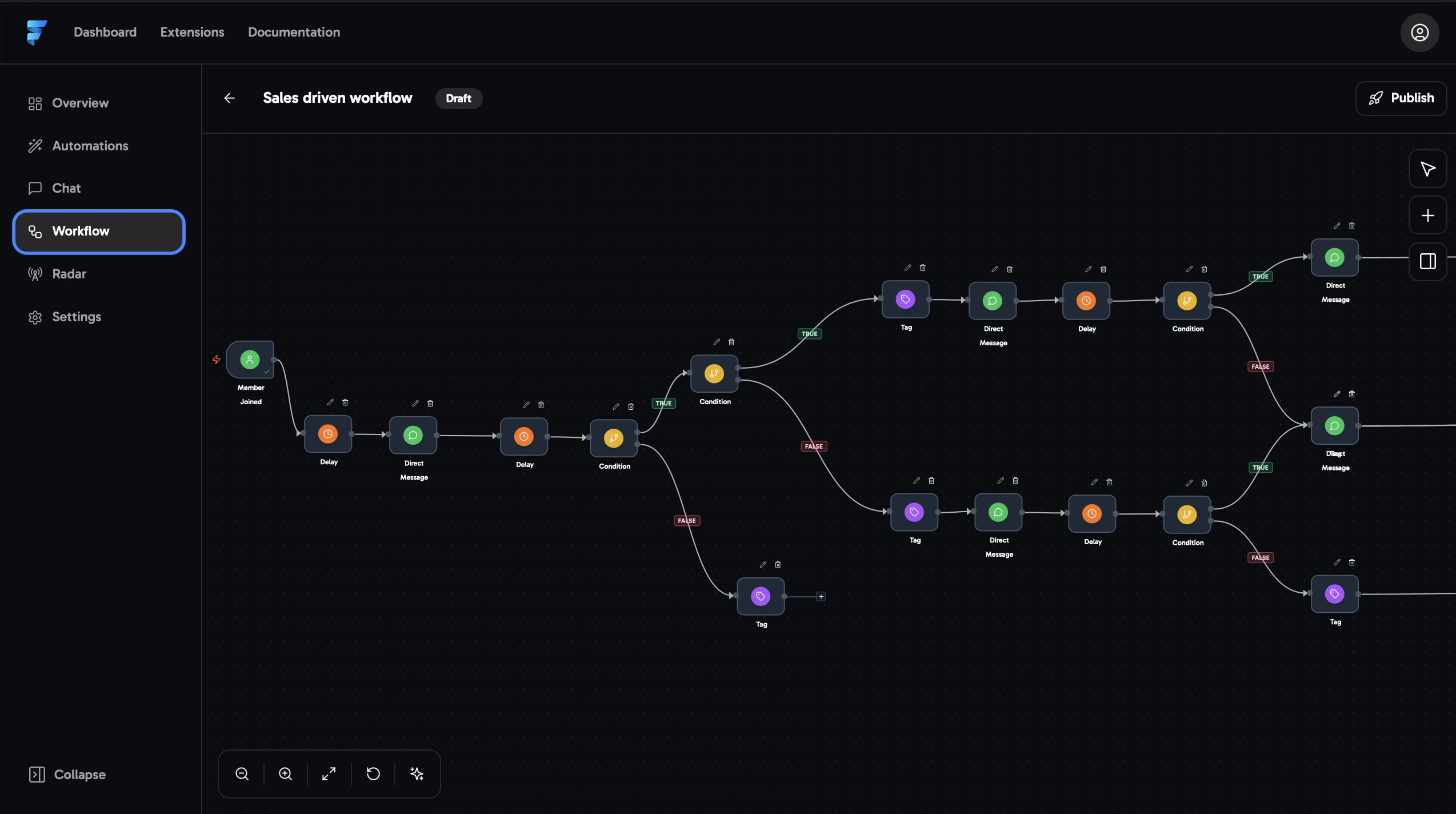
Creating Workflows
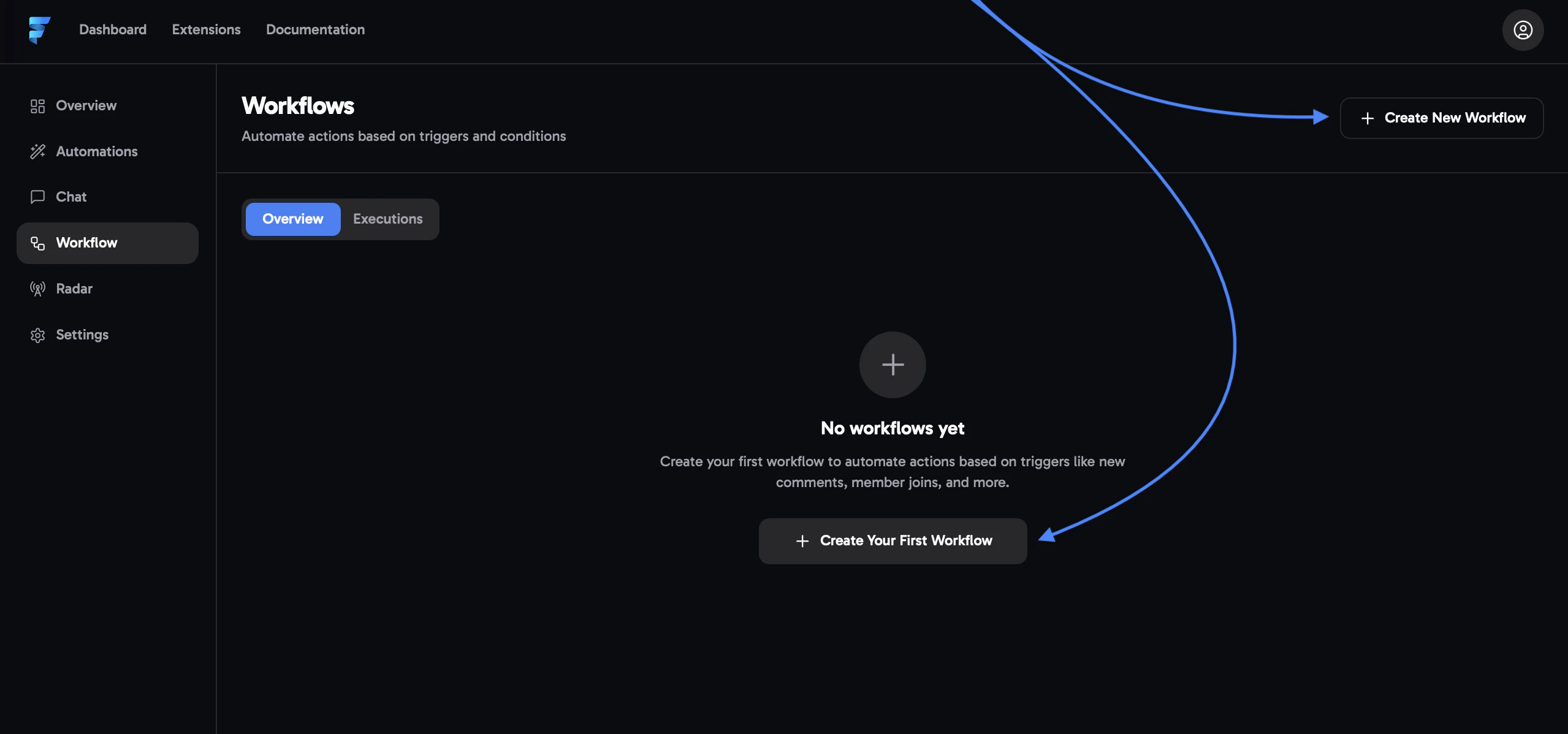
Below, you’ll find a beginner’s guide on how to set up your first workflow.Go to the Workflow tab and click 'Create Your First Workflow' in the center of the screen.
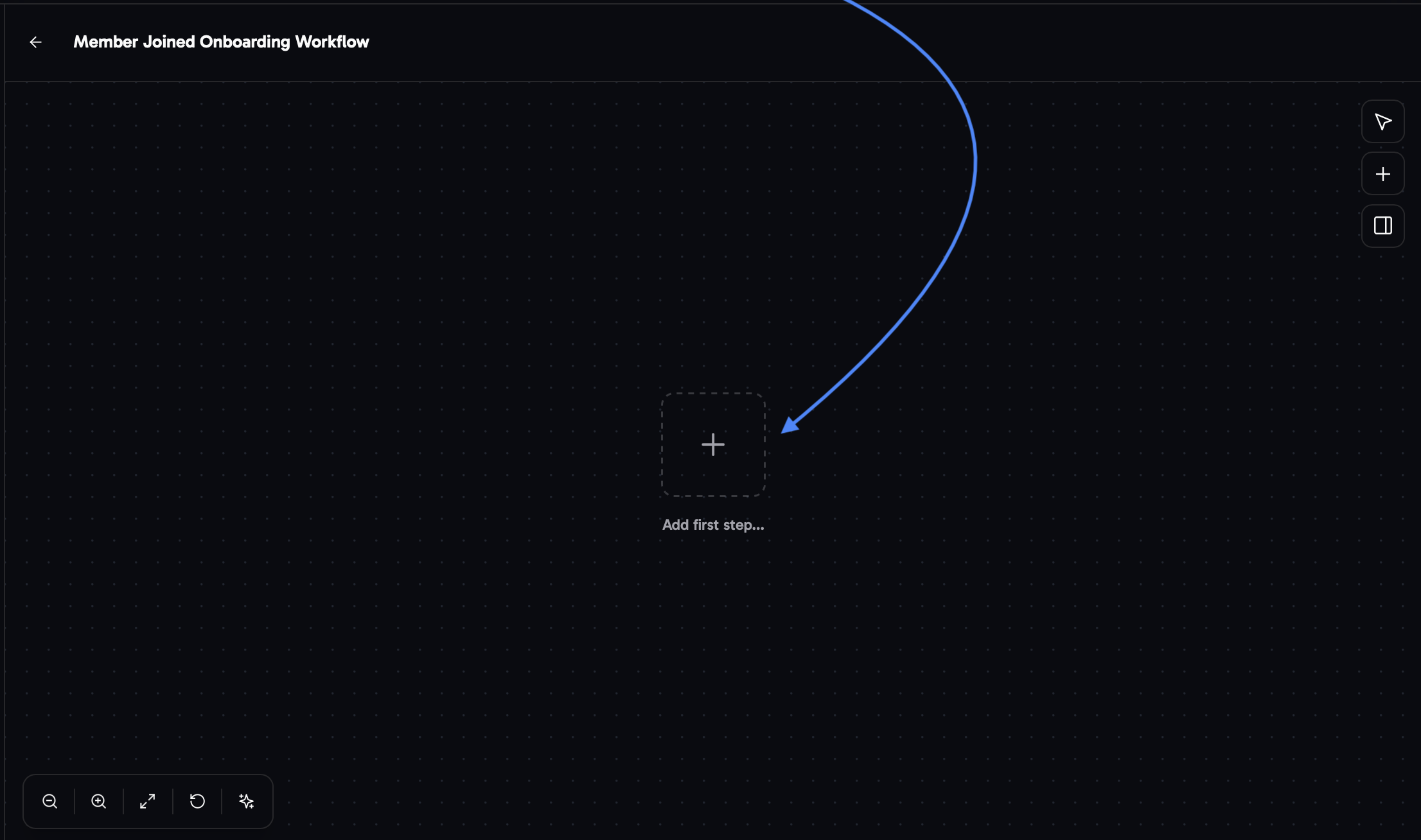
To create the first step of your workflow, click 'Add First Step' in the middle of the screen.
Choose from four different trigger options as the starting point for your workflow.
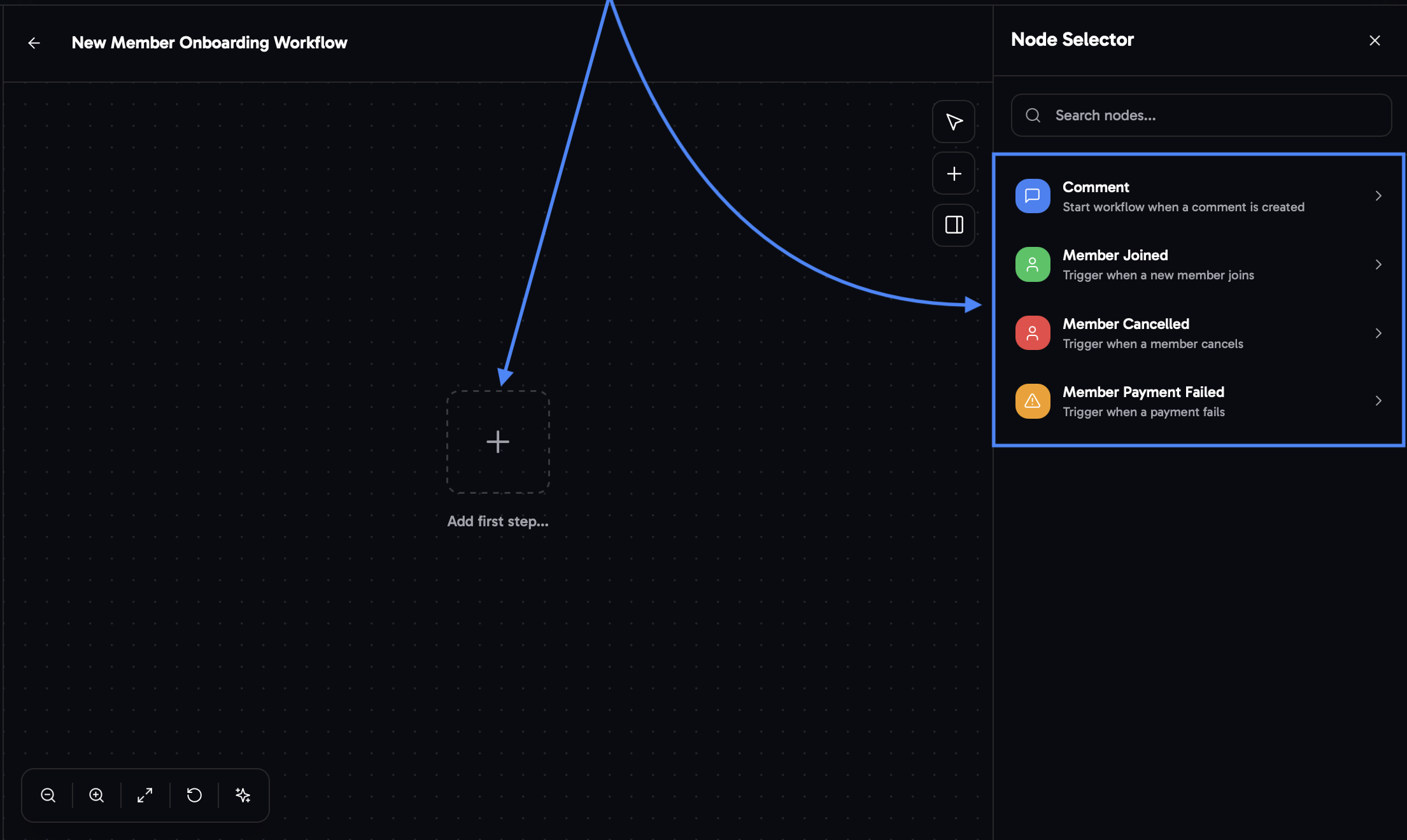
Here are the different options and their main use cases and benefits:
Comment - CTA
Member Joined
Member Cancelled
Member Payment Failed
Select from Six Different Nodes and Learn How to Set Up Each One
If you want to directly learn how to set up complete workflows, head to the Basic Templates section below.
Direct Message Node
Direct Message Node
Select the Direct Message Node
Click on the Direct Message node or the edit icon.
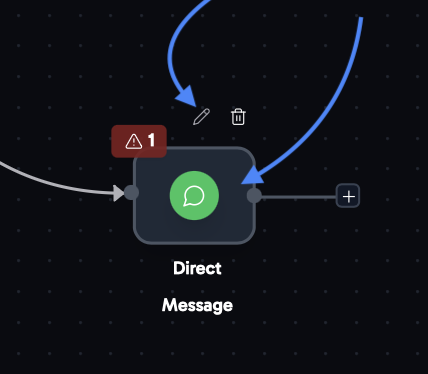
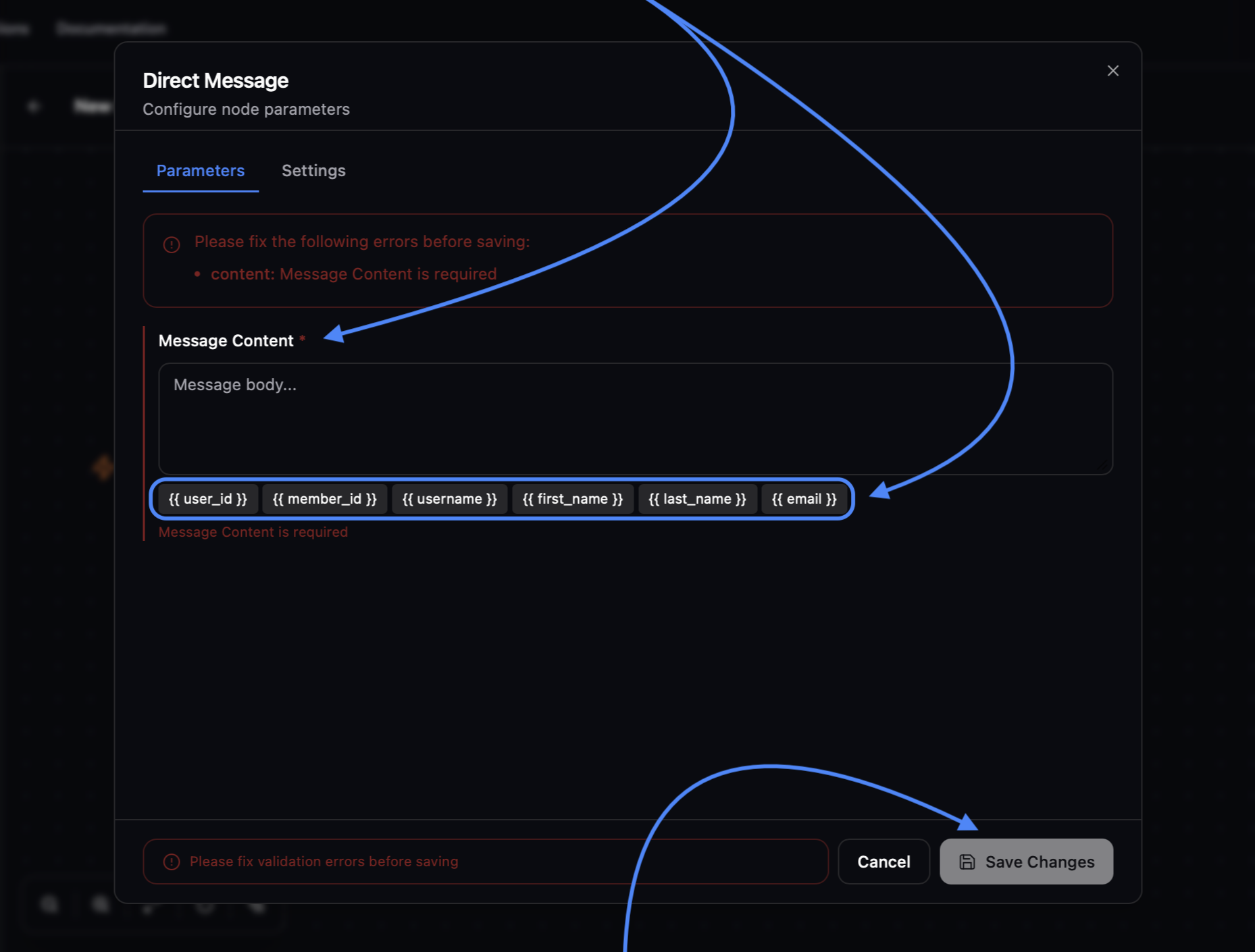
In this node, you can create the direct message you want to send automatically.
Email Node
Email Node
Select the Email Node
Click on the Email node or the edit icon.
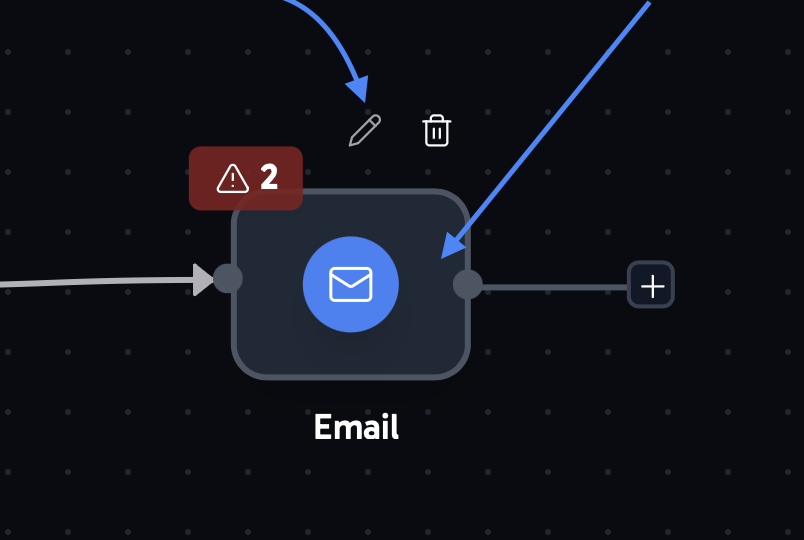
Create your email with a clear subject line and message content.
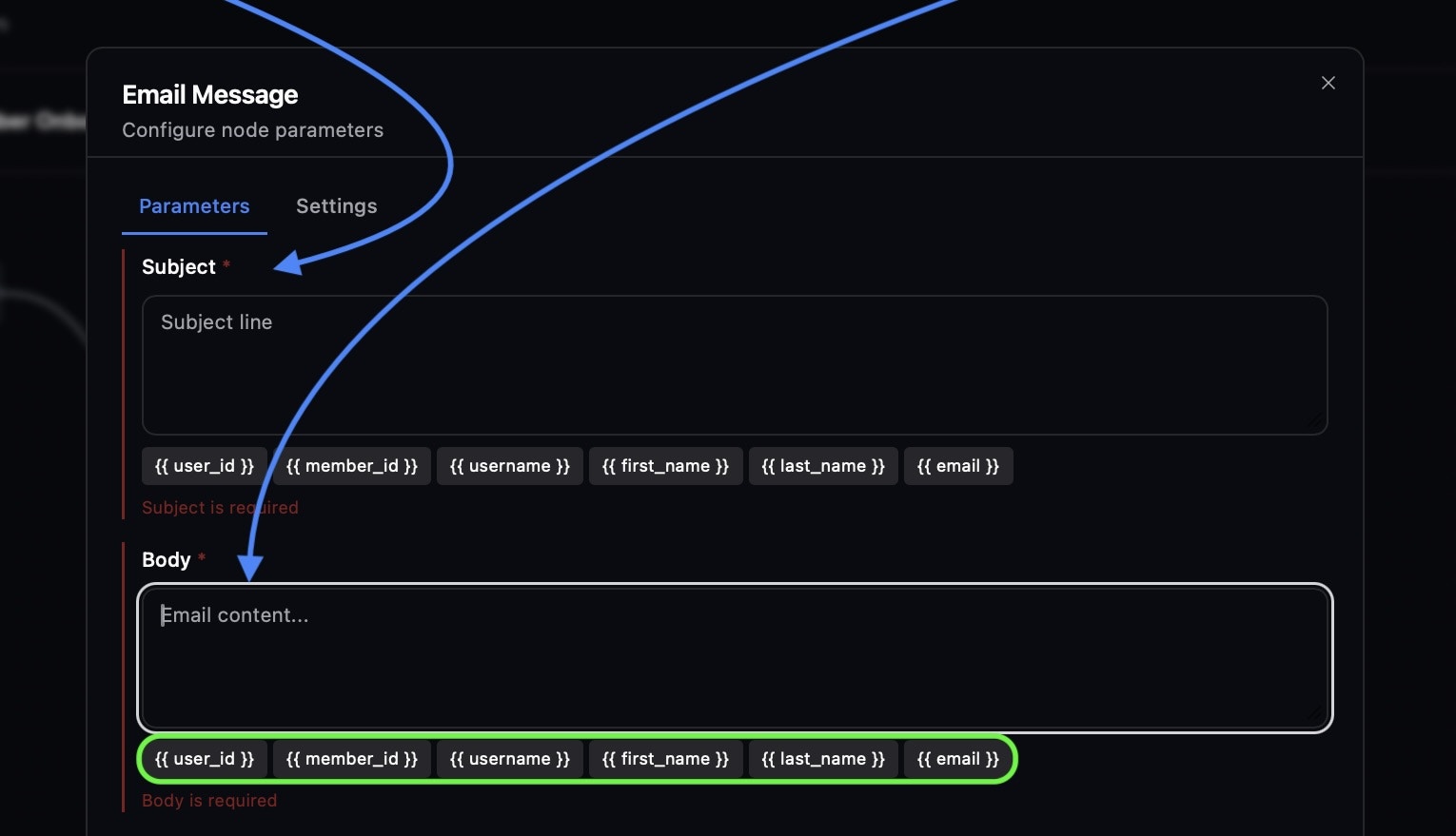
Add BCC recipients to receive reminders and keep everyone aligned.
Delay Node
Delay Node
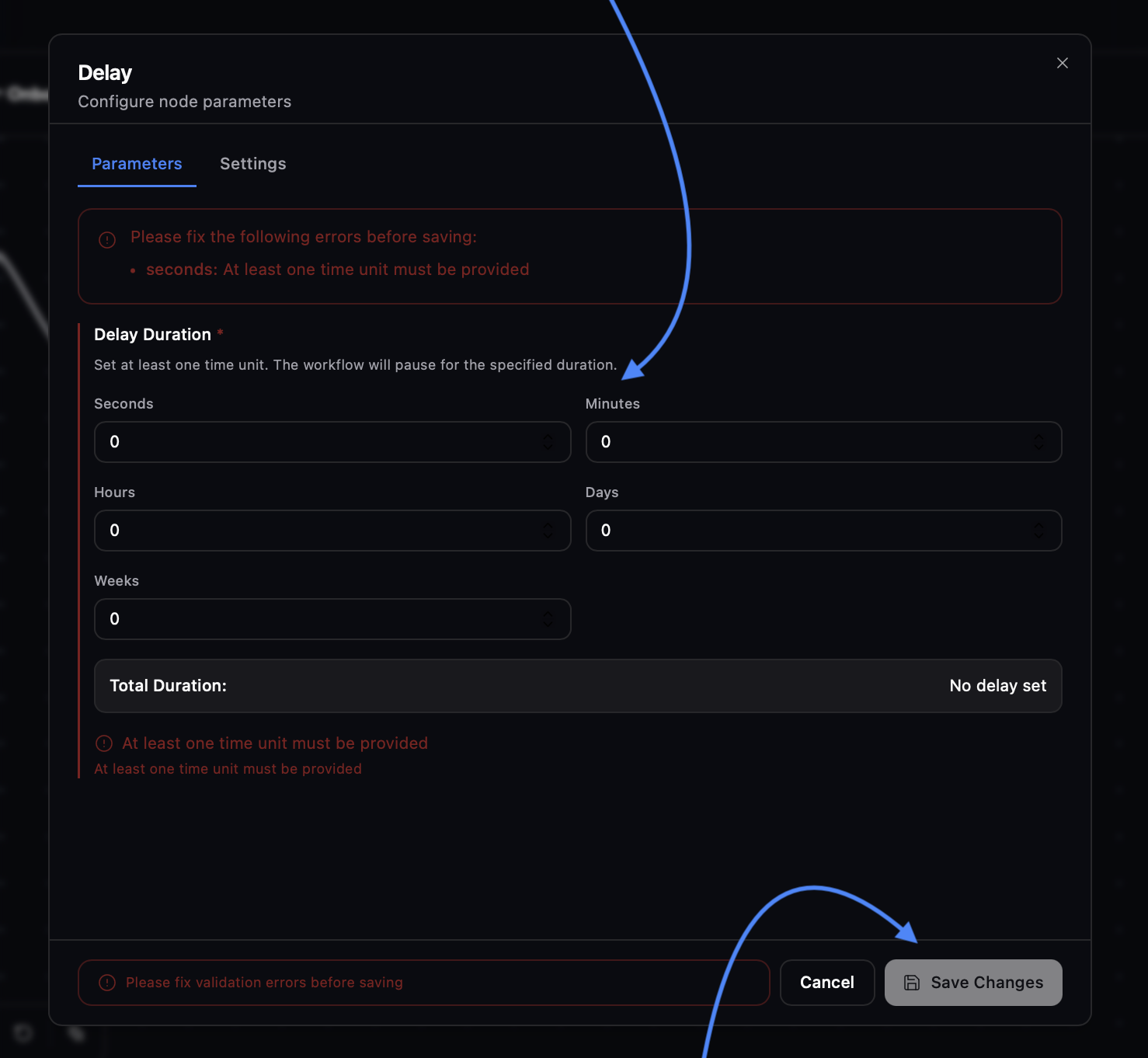
Select the Delay Node
Set a custom delay before the next action in your workflow is triggered.
Condition Node
Condition Node
Select the Condition Node
The "Advanced" section in the top right gives you additional flexibility for building workflows, but it is more complex and best suited for users with technical experience.
Tag Node
Tag Node
Select the Tag Node
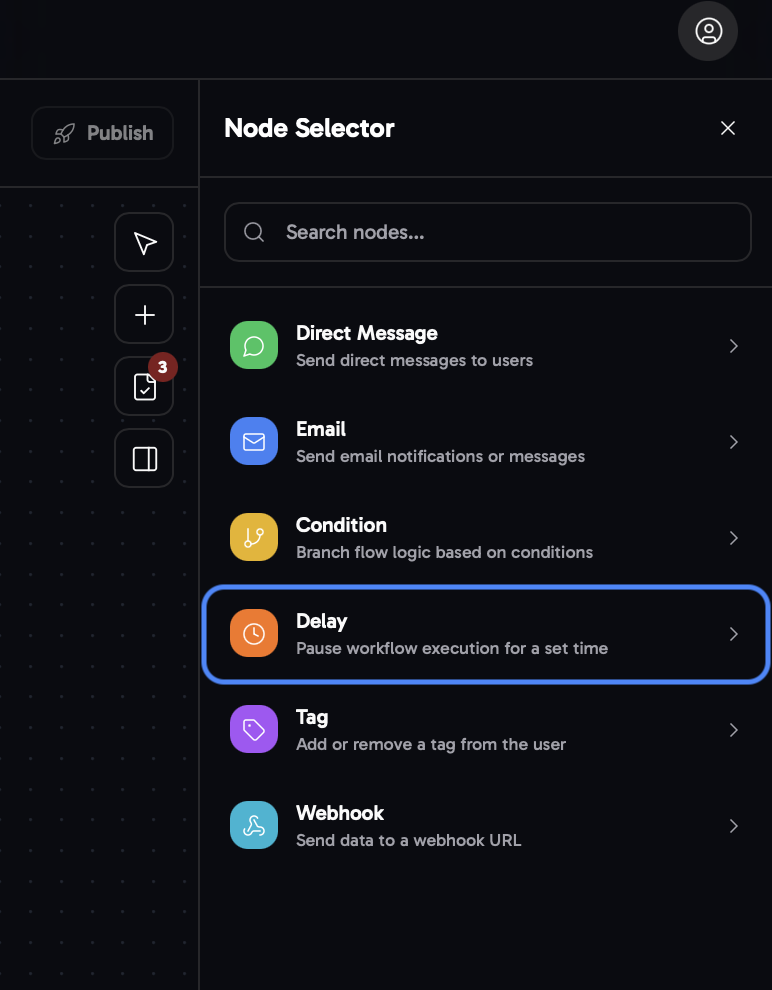
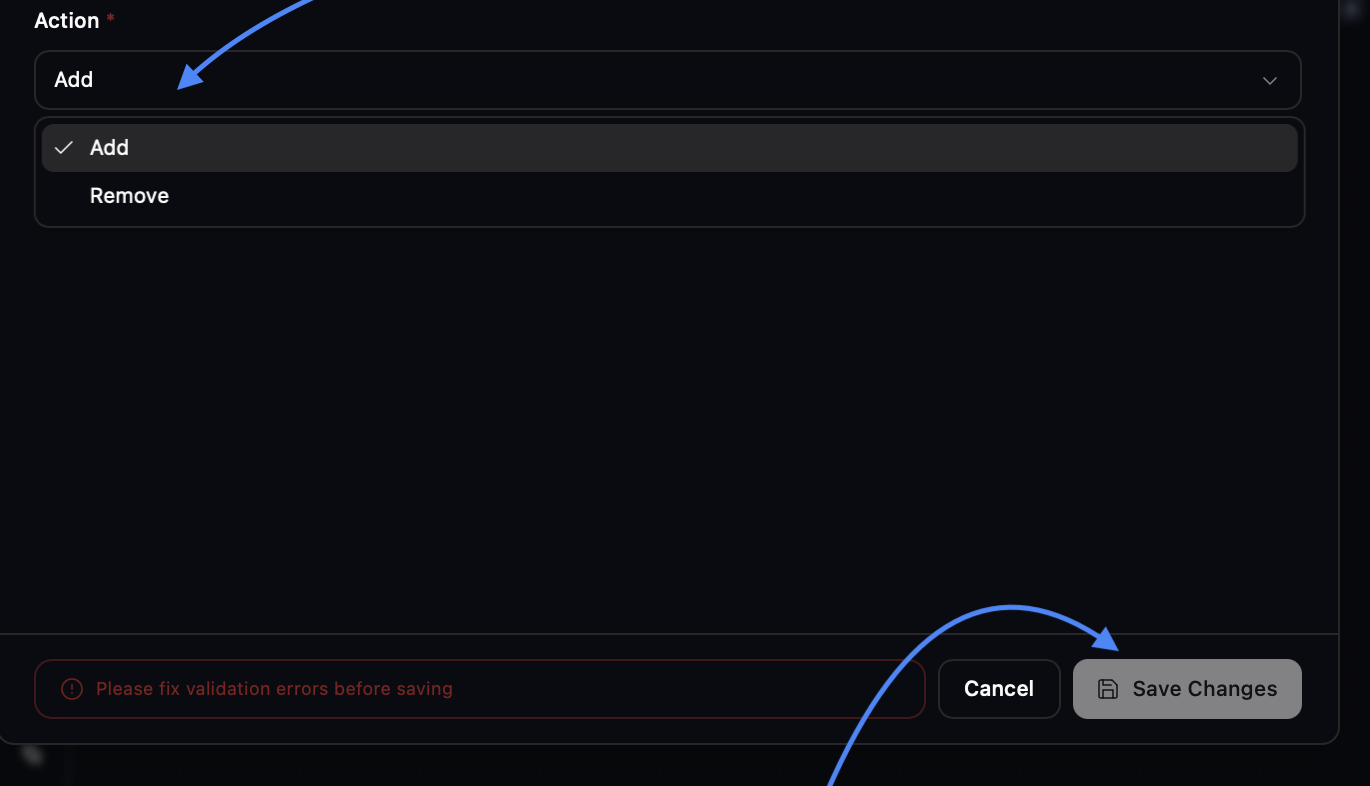
Choose the tag you'd like to add or remove at this stage of the workflow.
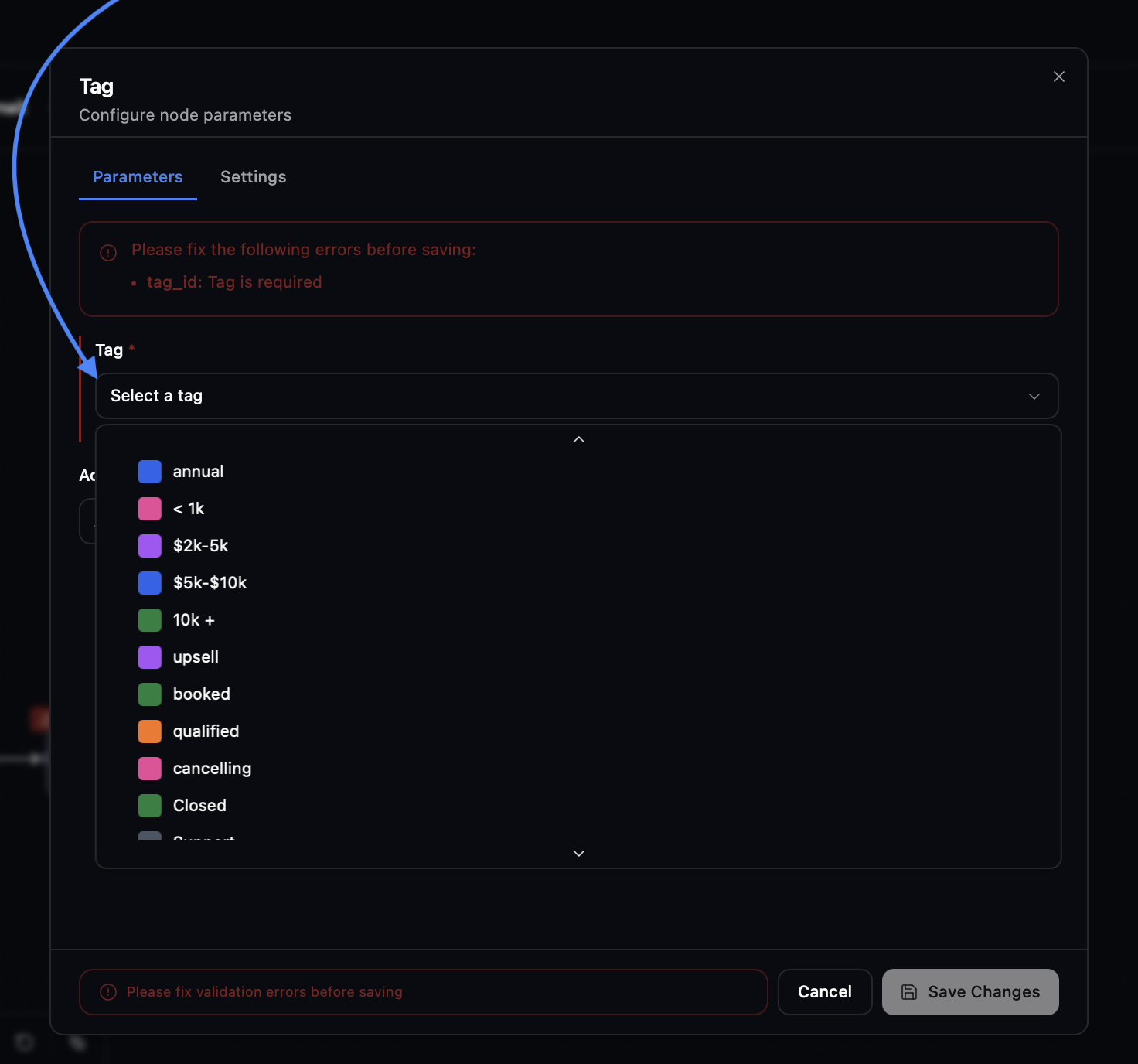
Decide whether the selected tag should be added to or removed from chats.
Webhook Node
Webhook Node
Select the Webhook Node
Enter the URL of the software you want to connect and select the data to send.
These are basic templates to help you begin. You can personalize them at any time and add or remove nodes with the help of the node guide above.
Basic Templates and Structure of Each Automation Type
Comment trigger example workflow (CTA post)
Comment trigger example workflow (CTA post)
Member joined example workflow (onboarding)
Member joined example workflow (onboarding)
Basic understanding of Member Joined Triggered workflows
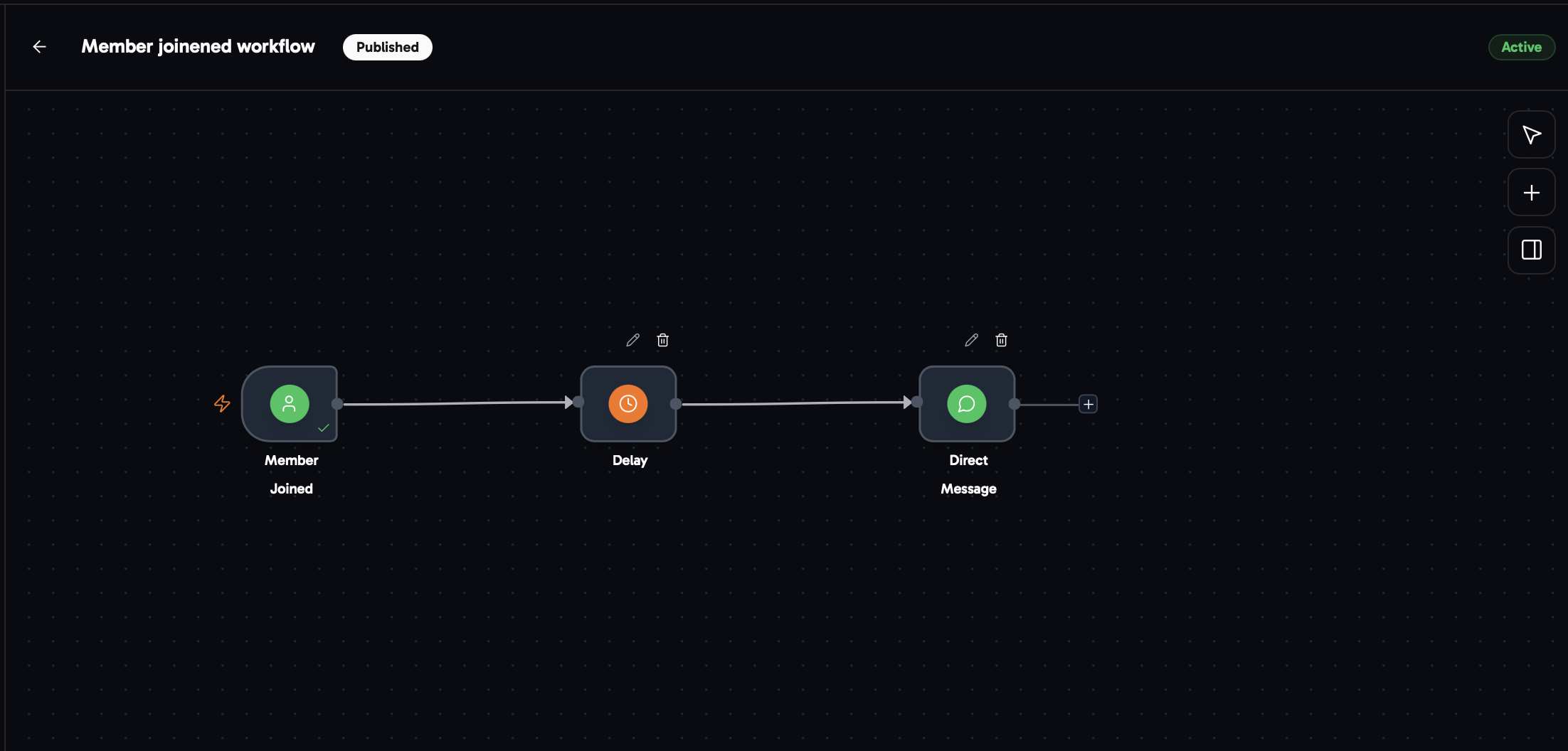
- Choose the Member Joined trigger when creating a new workflow.
- Next, place a Delay node right after the Member Joined trigger and set the amount of time the workflow should wait before continuing (skip this step if you want to act immediately).
- After the delay, or instantly if you prefer, add a direct message that will be sent to all new members who join your community.
-
Done. You’ve now created a basic Member Joined automation flow.
To make your workflow more effective and valuable, you can add follow-up chains, check whether members responded or viewed previous messages, and trigger follow-ups accordingly. You can also send webhooks based on specific actions to other software (CRM).For detailed setup instructions, visit the Node Guide where every node and its configuration is explained.
Payment failed example workflow (recovery)
Payment failed example workflow (recovery)
Basic understanding of Payment Failed Triggered workflows
- Choose the Payment Failed trigger when creating a new workflow.
- Next, place a Delay node right after the Payment Failed trigger and set the amount of time the workflow should wait before continuing (skip this step if you want to act immediately).
- Following the delay, or instantly if preferred, set up a direct message and/or email to reach members as soon as a card is declined and payment doesn’t go through.
-
Done. You’ve now created a basic Payment Failed automation flow.
To make your workflow more effective and valuable, you can add follow-up chains, check whether members responded or viewed previous messages, and trigger follow-ups accordingly. You can also send webhooks based on specific actions to other software (CRM).For detailed setup instructions, visit the Node Guide where every node and its configuration is explained.
Cancellation example workflow (recovery)
Cancellation example workflow (recovery)
Basic understanding of Cancellation Triggered workflows
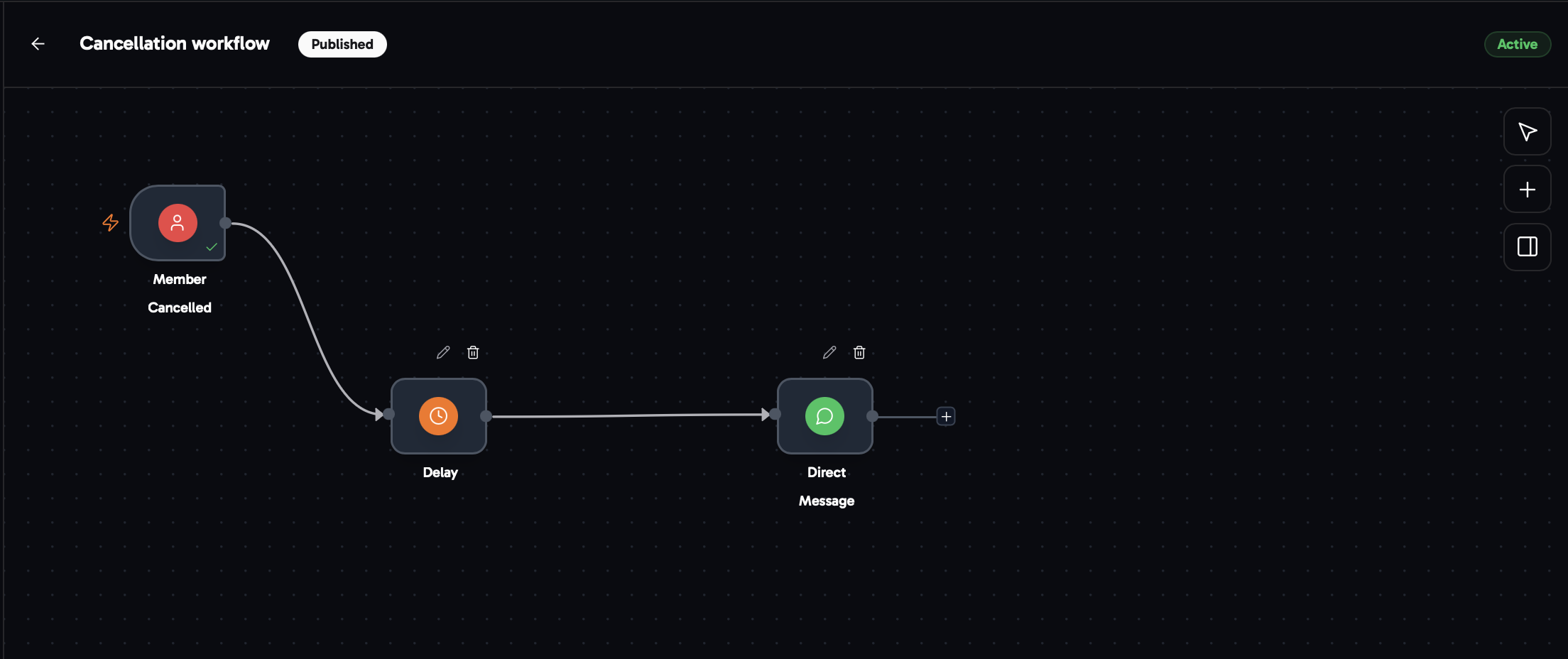
- Choose the Cancellation trigger when creating a new workflow.
- Next, place a Delay node right after the Member Cancellation trigger and set the amount of time the workflow should wait before continuing (skip this step if you want to act immediately).
- Following the delay, or instantly if preferred, set up a direct message and/or email to reach members as soon as they cancel their subscription.
-
Done. You’ve now created a basic Cancellation automation flow.
To make your workflow more effective and valuable, you can add follow-up chains, check whether members responded or viewed previous messages, and trigger follow-ups accordingly. You can also send webhooks based on specific actions to other software (CRM).For detailed setup instructions, visit the Node Guide where every node and its configuration is explained.
Navigation Tips and Tricks
Master Workflow Navigation to Build Automations Faster, Smarter, and More Efficiently
Efficient Navigation
In the top left, you can exit the workflow builder at any time and your progress will be saved automatically. In the top right, you can publish and activate workflows with one click once they’re ready.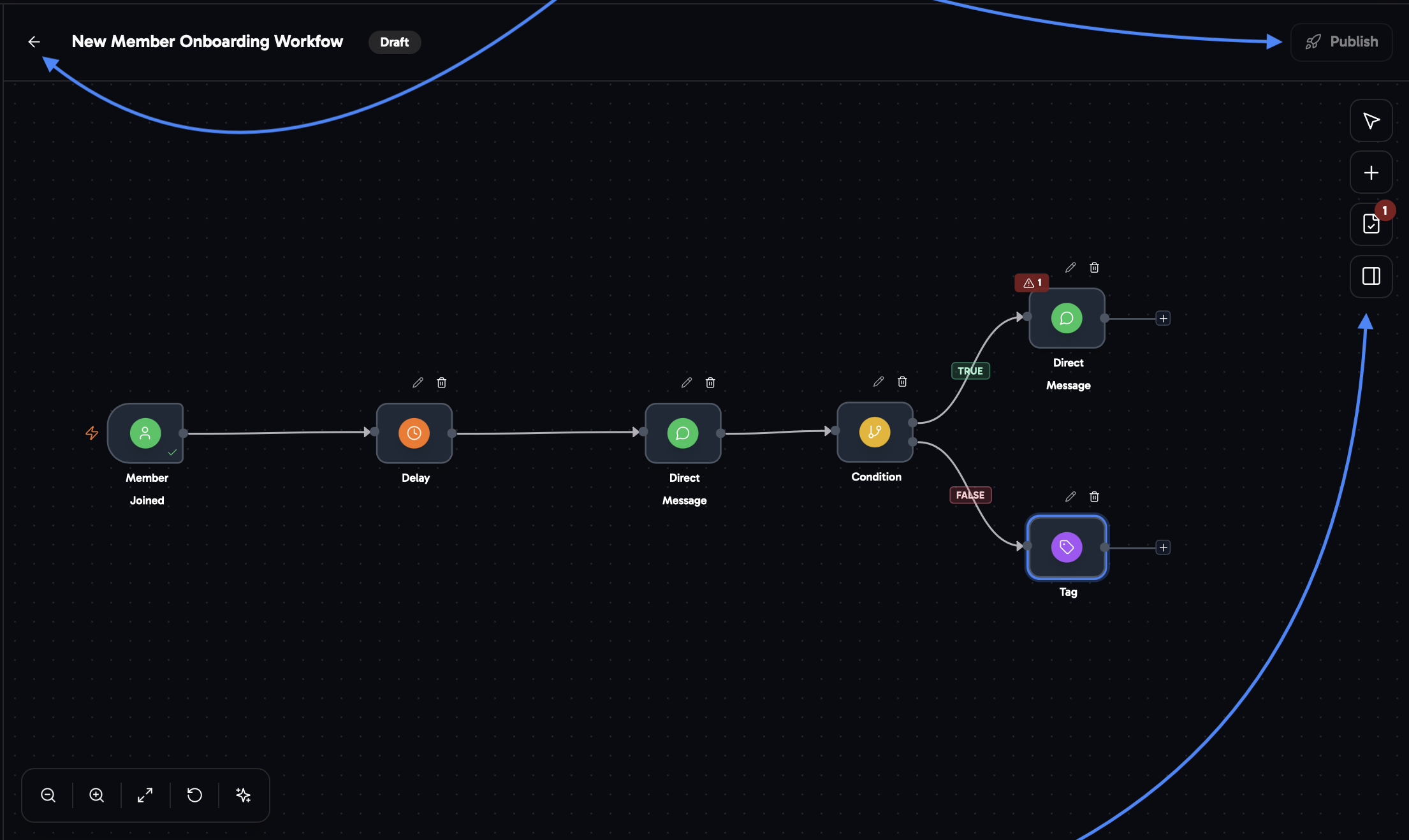
- Mouse Icon: This is the multi-select tool. It allows you to select multiple nodes at once by dragging your mouse across them. You can then move, copy, or delete the selected nodes together.
- Plus Icon: This button lets you add new nodes to your workflow. Follow this detailed guide to understand how each node works and how to set it up correctly.
- Overview Panel: This section shows all current issues or errors within the workflow, including explanations and guidance on how to fix them.
- Toggle Icon: This icon allows you to hide or show the right side panel based on your preference and the complexity of your workflow.
Tips and Tricks
Tips & Shortcuts
Tips & Shortcuts
Shortcut: Copy & Paste
Shortcut: Delete
Tips: There are many advanced tips for building complex and highly efficient workflows. You can explore our community for a complete playbook on what works and has been tested already by top communities.
Manage & Control Your Workflows in the Workflow Dashboard
The workflow dashboard gives you a clear overview of all active, inactive, and draft workflows. You can track the status and executions of each workflow to stay informed and maintain full control.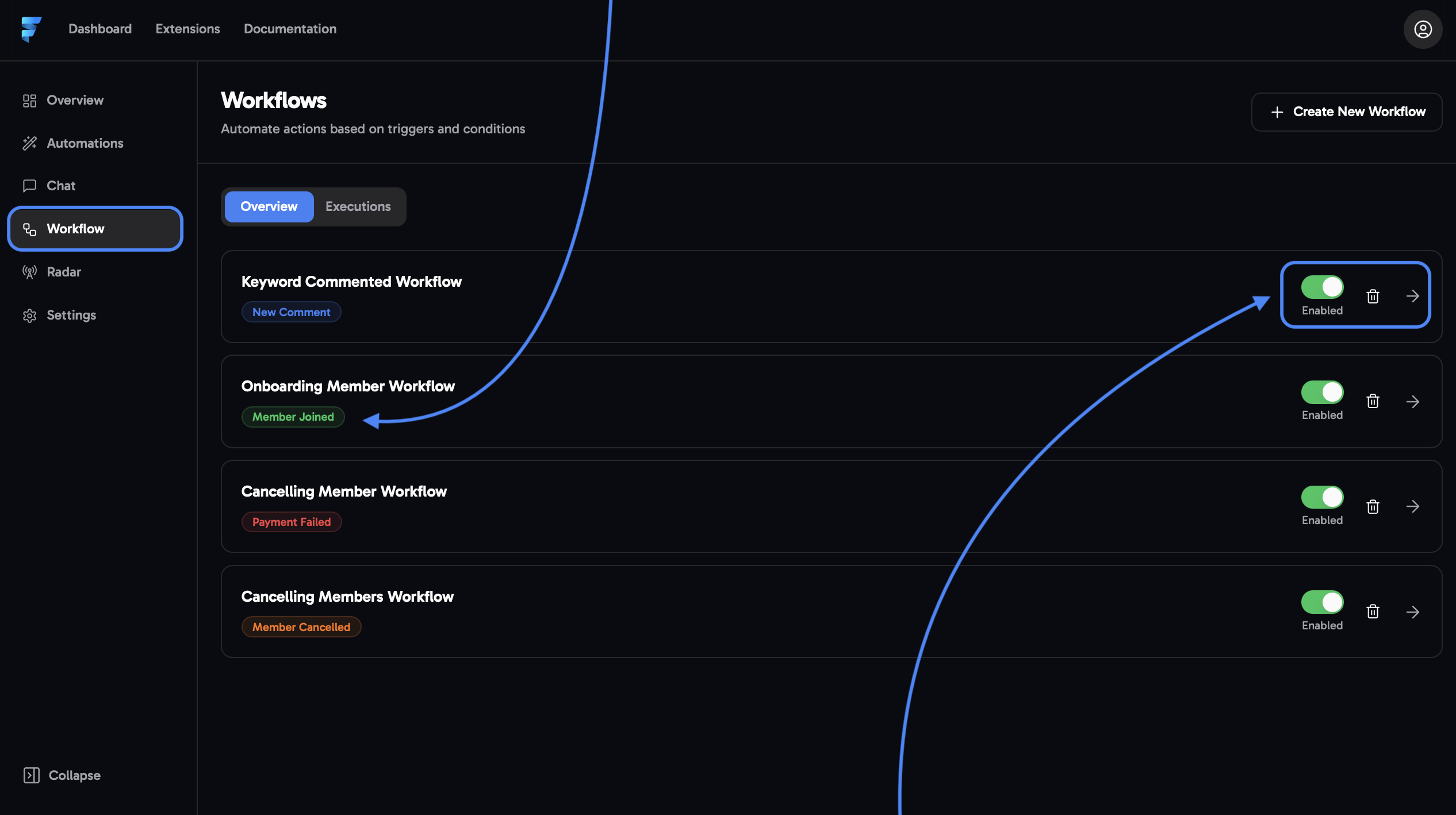
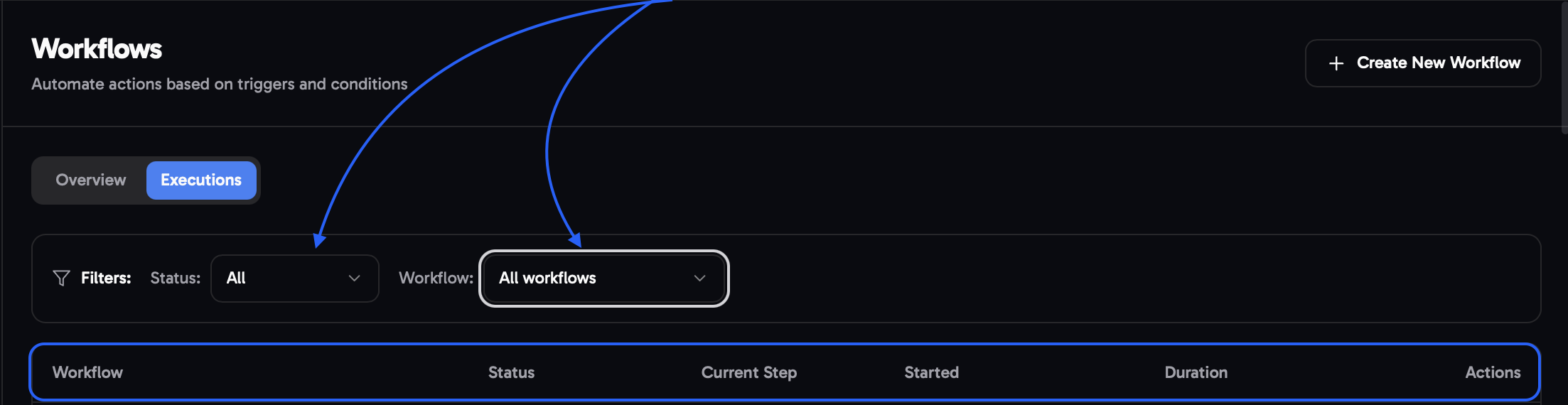
Executions Page
On this page, you can check the stage a workflow is in and whether it’s currently running.Filter by workflow status or individual workflows to review performance and track behavior.
Basic understanding of Comment Trigger workflows