> ## Documentation Index
> Fetch the complete documentation index at: https://docs.fiducia.gg/llms.txt
> Use this file to discover all available pages before exploring further.
# Radar
> Radar securely verifies emails and phone numbers of incoming members, protecting your community from bots and ensuring valid contact info.
# **Setup Guide**
The setup **requires** you to already have **membership questions** for your community and **auto-accept disabled.**
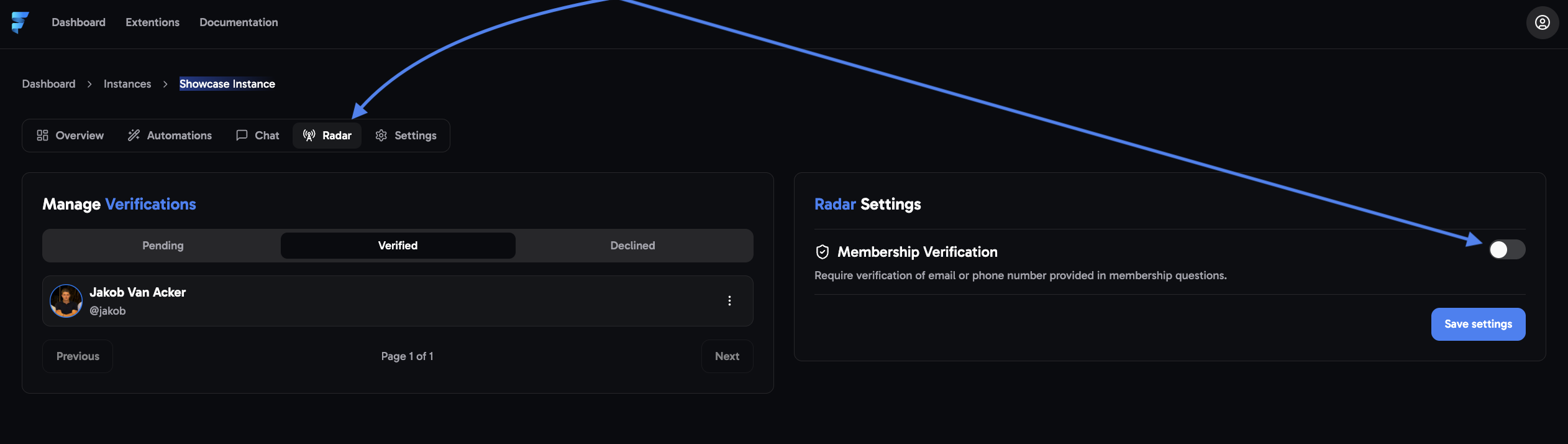 It can take up to 2 minutes for Fiducia to recognize a change in your membership questions on skool.
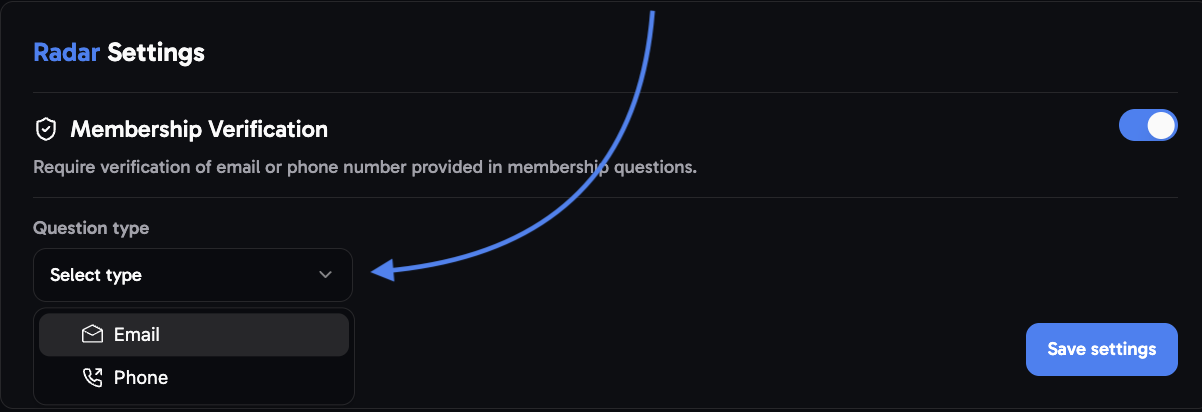 Email verification is great for reaching a wider audience, whereas phone verification ensures you attract committed and high-quality members.
There are two options for verifying your membership requests. Users will either receive an E-Mail containing a verification code or an SMS depending on what question type you select.
For E-Mail verification you will have to include a question of type 'Email' in your membership questions on Skool, while for Phone you'll need to add a 'Text' field.
Email verification is great for reaching a wider audience, whereas phone verification ensures you attract committed and high-quality members.
There are two options for verifying your membership requests. Users will either receive an E-Mail containing a verification code or an SMS depending on what question type you select.
For E-Mail verification you will have to include a question of type 'Email' in your membership questions on Skool, while for Phone you'll need to add a 'Text' field.
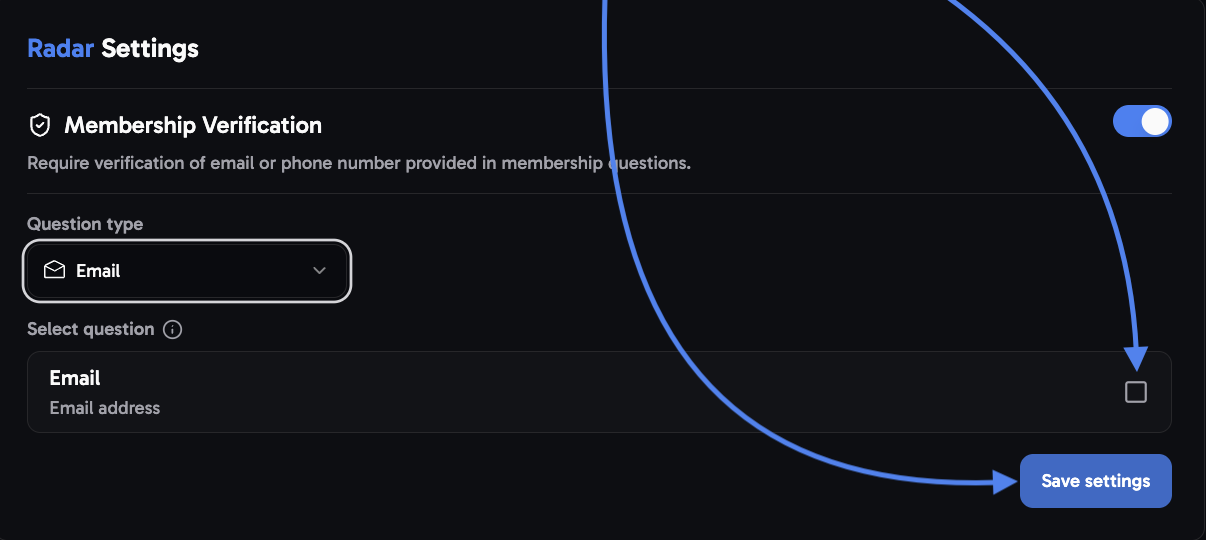 After clicking “**Save settings**,” this pop-up should appear in the **bottom right corner. ✅**\\
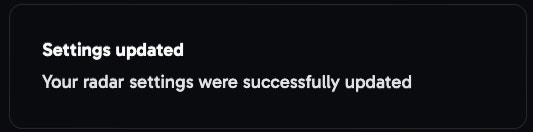 **→ Now 'radar' should be properly installed and active in your community**
# Manage verifications
Head to the **left hand side** on 'Radar' where you can distinguish between **three options**:
**→ Now 'radar' should be properly installed and active in your community**
# Manage verifications
Head to the **left hand side** on 'Radar' where you can distinguish between **three options**:
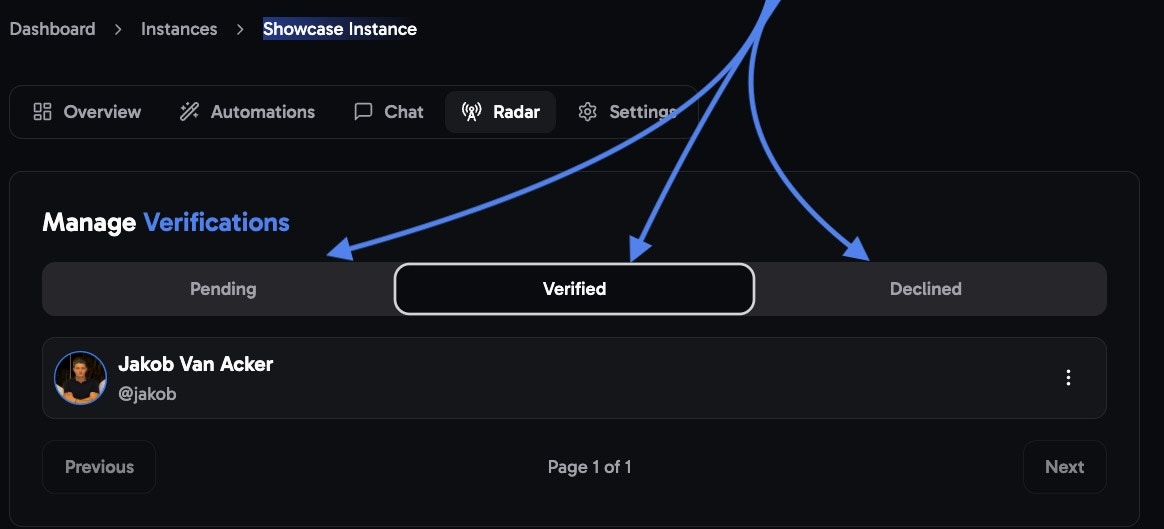 1. **Verified** → shows all members who have **successfully** completed verification.
2. **Declined** → these members used invalid or incorrect info during verification.
3. **Pending** → these are members who **haven’t finished verifying** their details yet.
## **Manually Manage Pending Members**
###
1. **Verified** → shows all members who have **successfully** completed verification.
2. **Declined** → these members used invalid or incorrect info during verification.
3. **Pending** → these are members who **haven’t finished verifying** their details yet.
## **Manually Manage Pending Members**
### 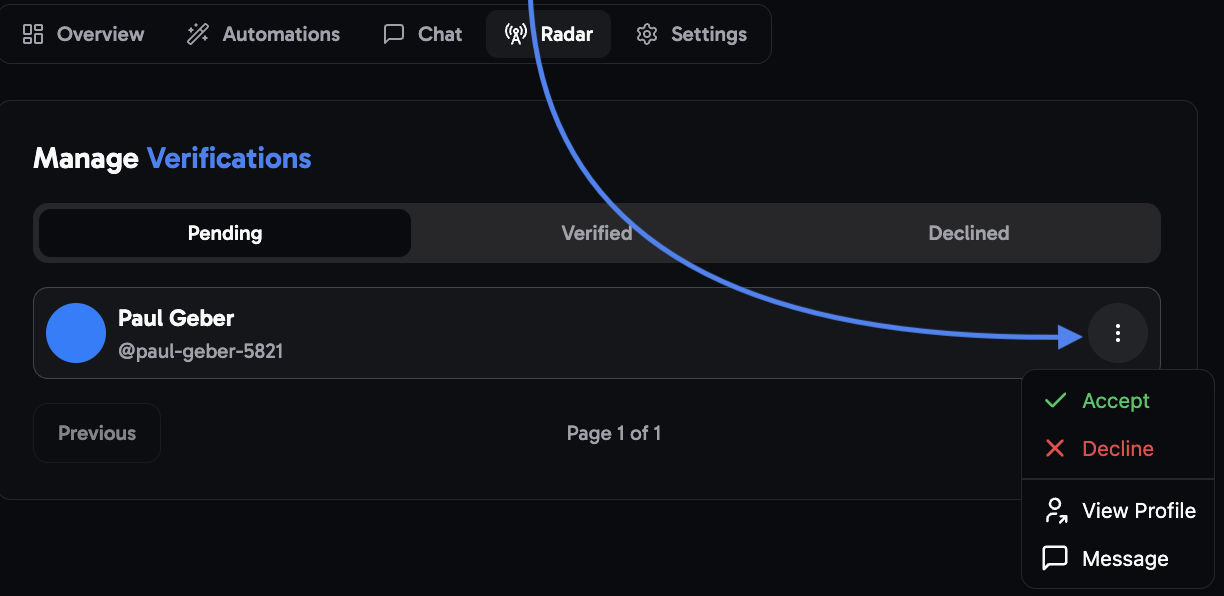 Access multiple actions via the three dots on the right
1. You can still **manually** approve/decline **pending members** using **'accept'** and **'decline'**.
This is only **optional**, as 'membership verification' is **fully automated**
2. Using the **'View Profile'** button, you can review their profile to help confirm the account before approving/declining.
3. You can **message** users **directly from the Radar tab** by clicking the **'Message'** button, which will redirect you to their profile/chat.
This functionality is available in all Radar tabs, including 'Declined', 'Verified', and 'Pending'.
# View Member details
Access multiple actions via the three dots on the right
1. You can still **manually** approve/decline **pending members** using **'accept'** and **'decline'**.
This is only **optional**, as 'membership verification' is **fully automated**
2. Using the **'View Profile'** button, you can review their profile to help confirm the account before approving/declining.
3. You can **message** users **directly from the Radar tab** by clicking the **'Message'** button, which will redirect you to their profile/chat.
This functionality is available in all Radar tabs, including 'Declined', 'Verified', and 'Pending'.
# View Member details
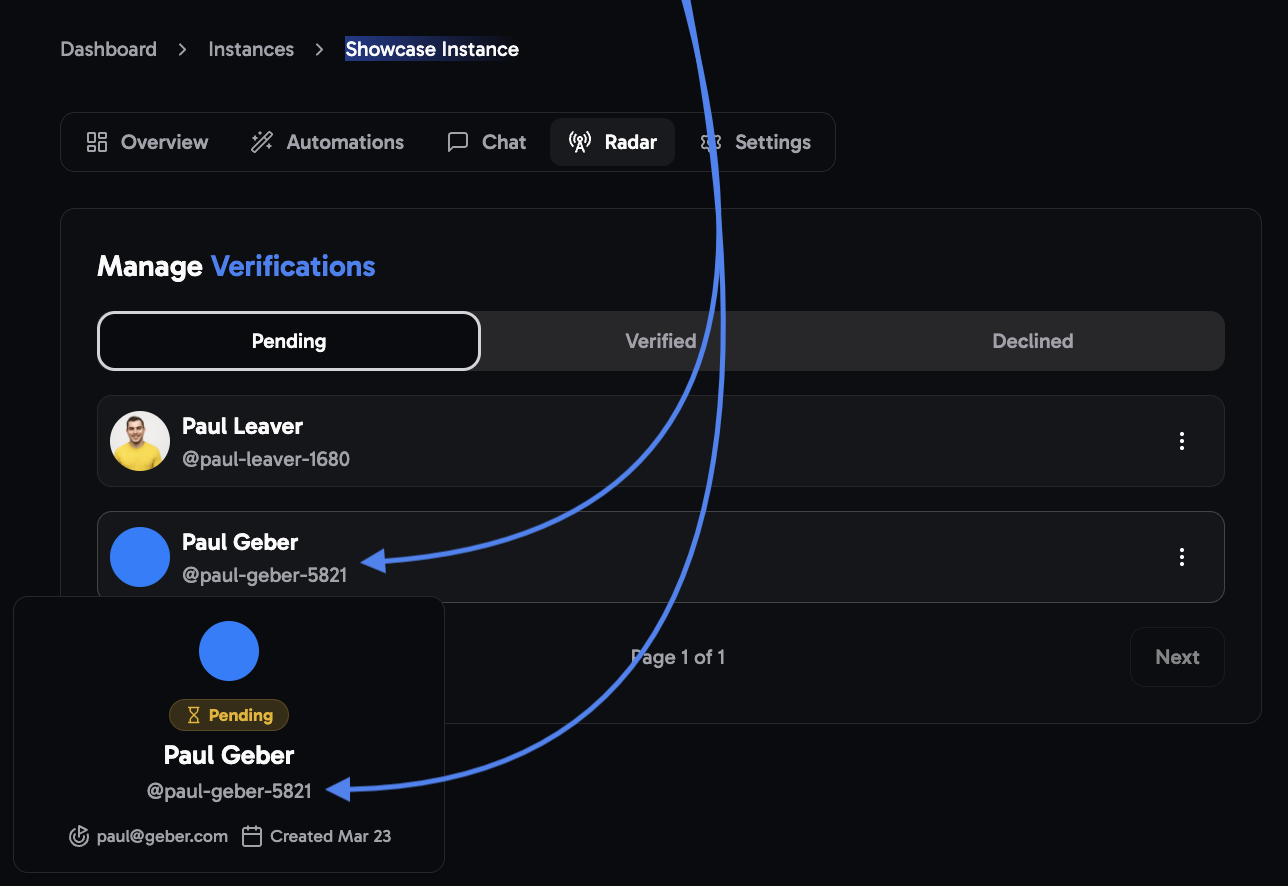 Review the user's **status**, **contact information**, and the **date of their join request**.
Simply **hover over the profile** you'd like to review to **access the details.**
Checking this information can be very helpful for manually accepting/declining members in the pending folder.
If any issues occurred, please double check if you missed any of the steps, or contact us [**here**](mailto:support@fiducia.gg) for further support.
Review the user's **status**, **contact information**, and the **date of their join request**.
Simply **hover over the profile** you'd like to review to **access the details.**
Checking this information can be very helpful for manually accepting/declining members in the pending folder.
If any issues occurred, please double check if you missed any of the steps, or contact us [**here**](mailto:support@fiducia.gg) for further support.