> ## Documentation Index
> Fetch the complete documentation index at: https://docs.fiducia.gg/llms.txt
> Use this file to discover all available pages before exploring further.
# Quick Start
> Welcome to the Fiducia documentation. Follow the quick-start below to learn how to setup, use and customize the tool.
## **Get started**
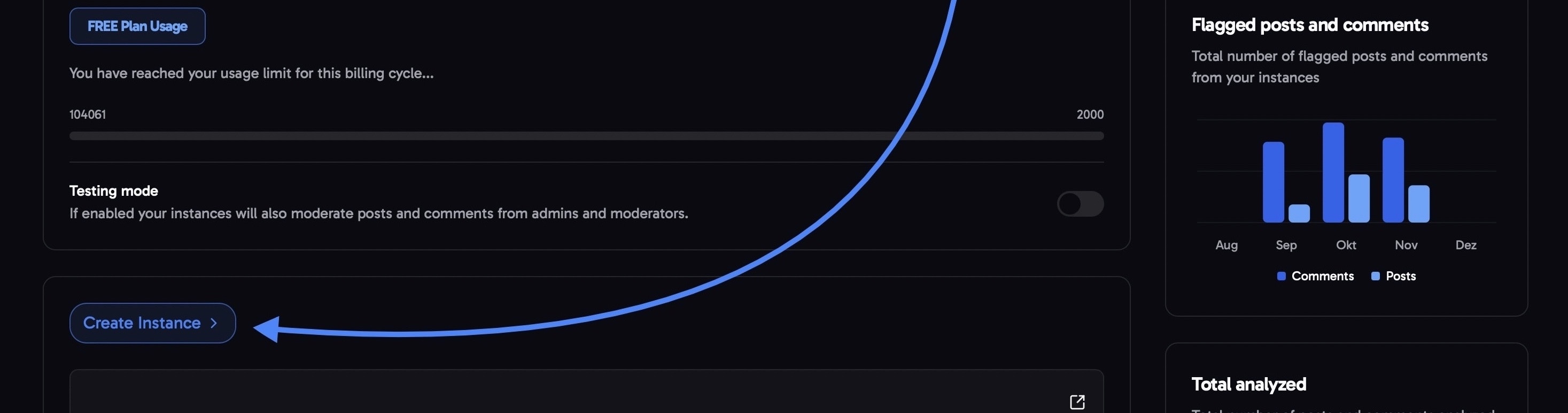
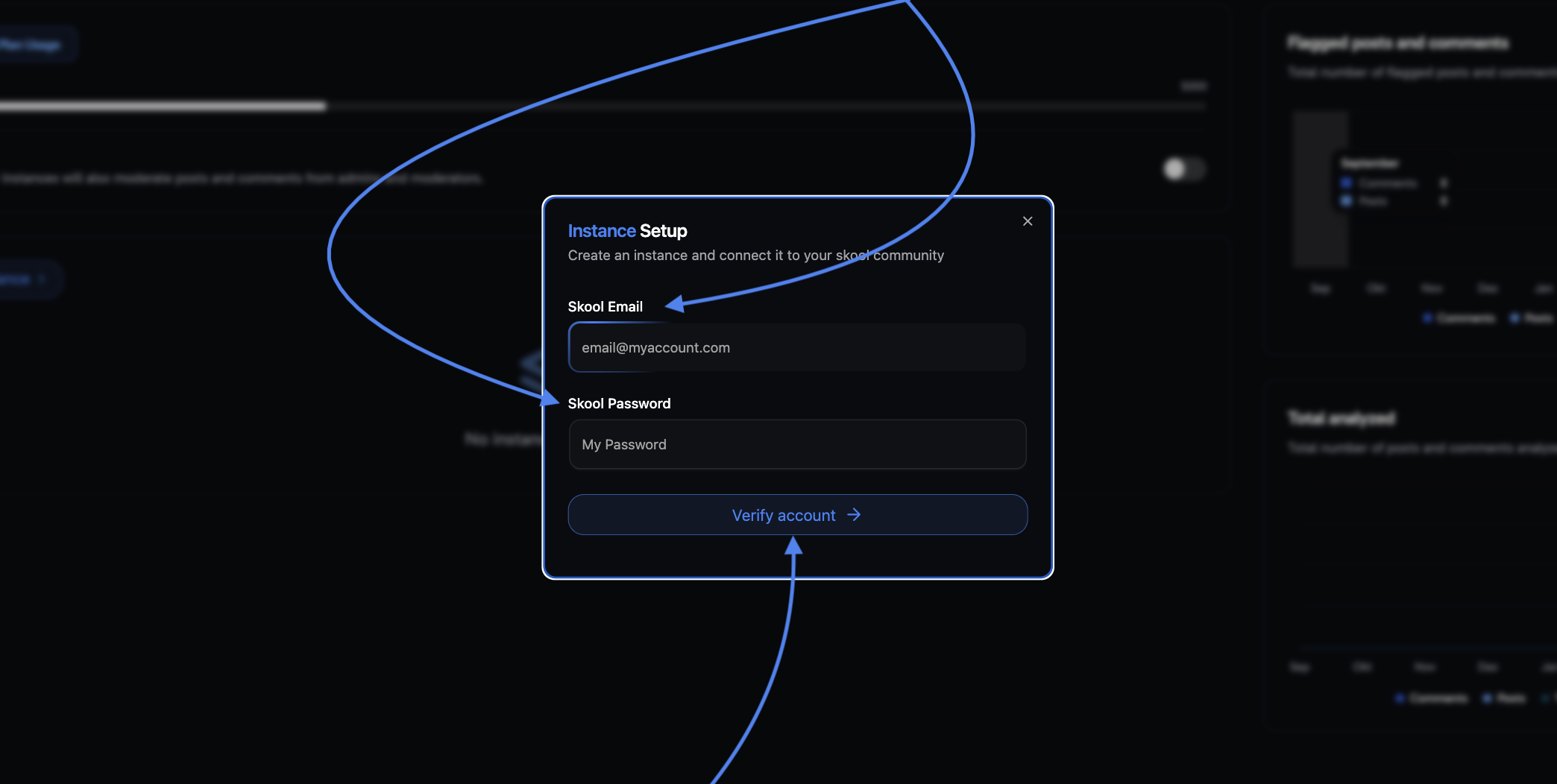 Once you’ve entered your credentials, simply click **“Verify Account”** to continue.
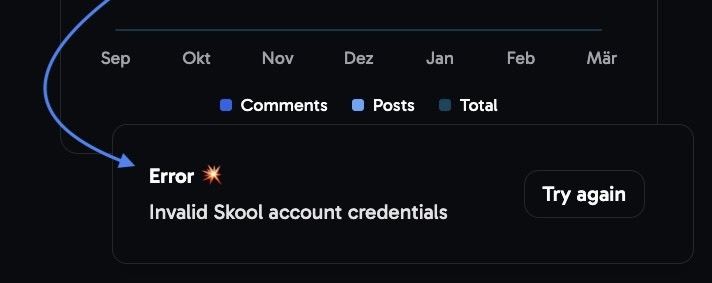 If your credentials are incorrect, please double-check them and try again.
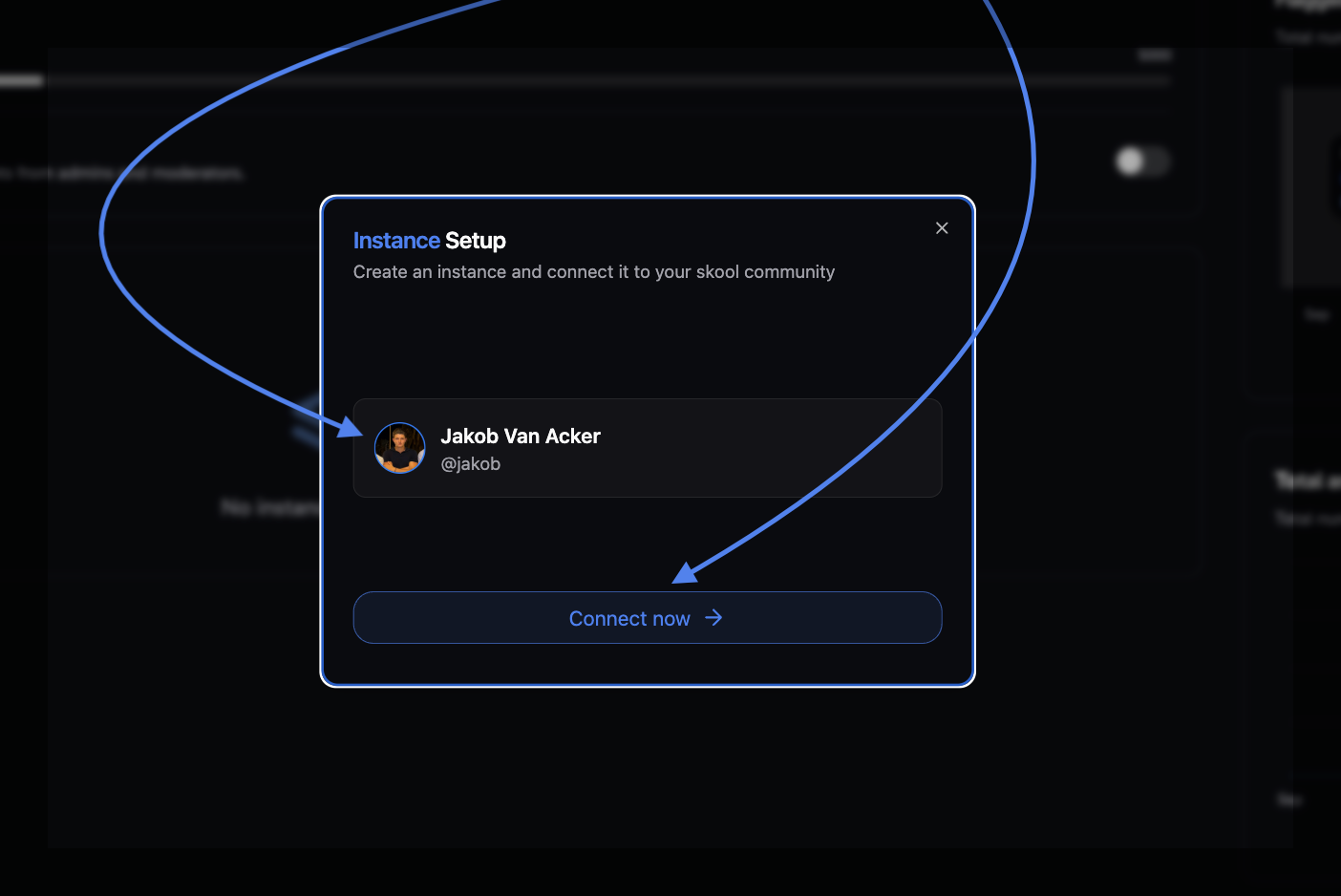
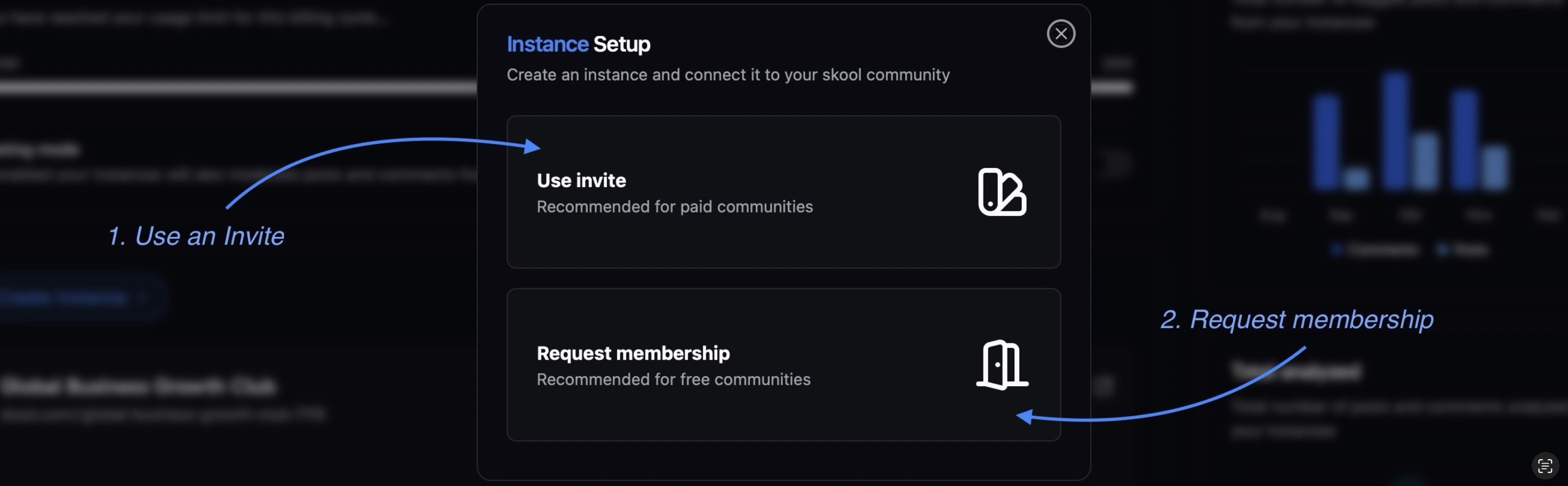 Below is a **detailed guide** outlining both **options**.
 side-note: This name appears solely in the **Fiducia dashboard** and **isn't visible** to your **community members**.
**copy+paste** → very convenient
Wait for a couple of seconds → in tandem Fiducia will **automatically** **connect** to **your account.**
If your account is already an ADMIN within the community, this step will be completed automatically.
This step is essential for the set-up, please don’t forget to do this otherwise you’ll have to reiterate the entire process…
**→ Now Fiducia should be properly installed in your community via the invite**
If any issues occurred, please check if you missed any of the steps, or wright us an [****email here****](support@mg.fiducia.gg) for further support.
side-note: This name appears solely in the **Fiducia dashboard** and **isn't visible** to your **community members**.
**copy+paste** → very convenient
Wait for a couple of seconds → in tandem Fiducia will **automatically** **connect** to **your account.**
If your account is already an ADMIN within the community, this step will be completed automatically.
This step is essential for the set-up, please don’t forget to do this otherwise you’ll have to reiterate the entire process…
**→ Now Fiducia should be properly installed in your community via the invite**
If any issues occurred, please check if you missed any of the steps, or wright us an [****email here****](support@mg.fiducia.gg) for further support.
 Side-note: This name appears solely in the **Fiducia dashboard** and **isn't visible** to your **community members**.
***copy+paste*** → very convenient
Wait for a couple of seconds → in tandem Fiducia will **automatically connect** to **your account**.
If your account is already an ADMIN within the community, this step will be completed automatically.
*This step is essential for the set-up, please don’t forget to do this otherwise you’ll have to reiterate the entire process…*
**Now Fiducia should be properly installed in your community via the 'Request membership' option**
## Check the setup
After going through the setup, click the instance that was created in your dashboard. This will open the [Overview](/moderation#overview) page.
Side-note: This name appears solely in the **Fiducia dashboard** and **isn't visible** to your **community members**.
***copy+paste*** → very convenient
Wait for a couple of seconds → in tandem Fiducia will **automatically connect** to **your account**.
If your account is already an ADMIN within the community, this step will be completed automatically.
*This step is essential for the set-up, please don’t forget to do this otherwise you’ll have to reiterate the entire process…*
**Now Fiducia should be properly installed in your community via the 'Request membership' option**
## Check the setup
After going through the setup, click the instance that was created in your dashboard. This will open the [Overview](/moderation#overview) page.
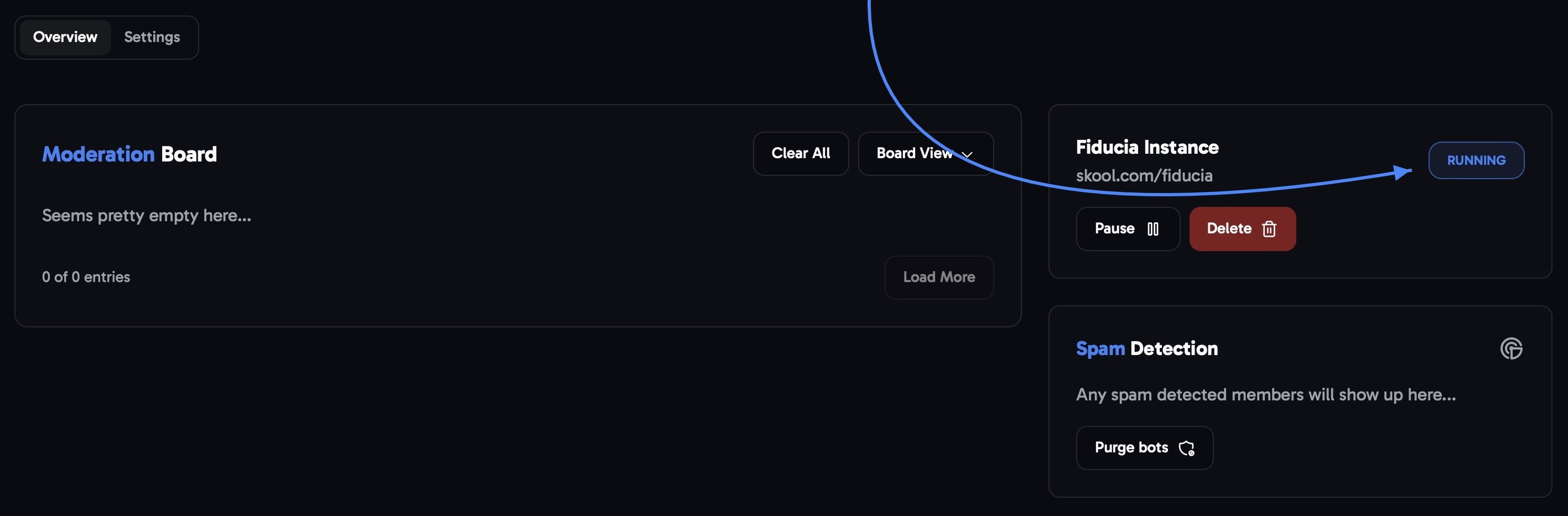 You can check the status of the instance in the top-right. The instance should now be **running**.