> ## Documentation Index
> Fetch the complete documentation index at: https://docs.fiducia.gg/llms.txt
> Use this file to discover all available pages before exploring further.
# Automations
> Our automations are based on a trigger-action principle and are designed to automate various tasks inside of your Skool community.
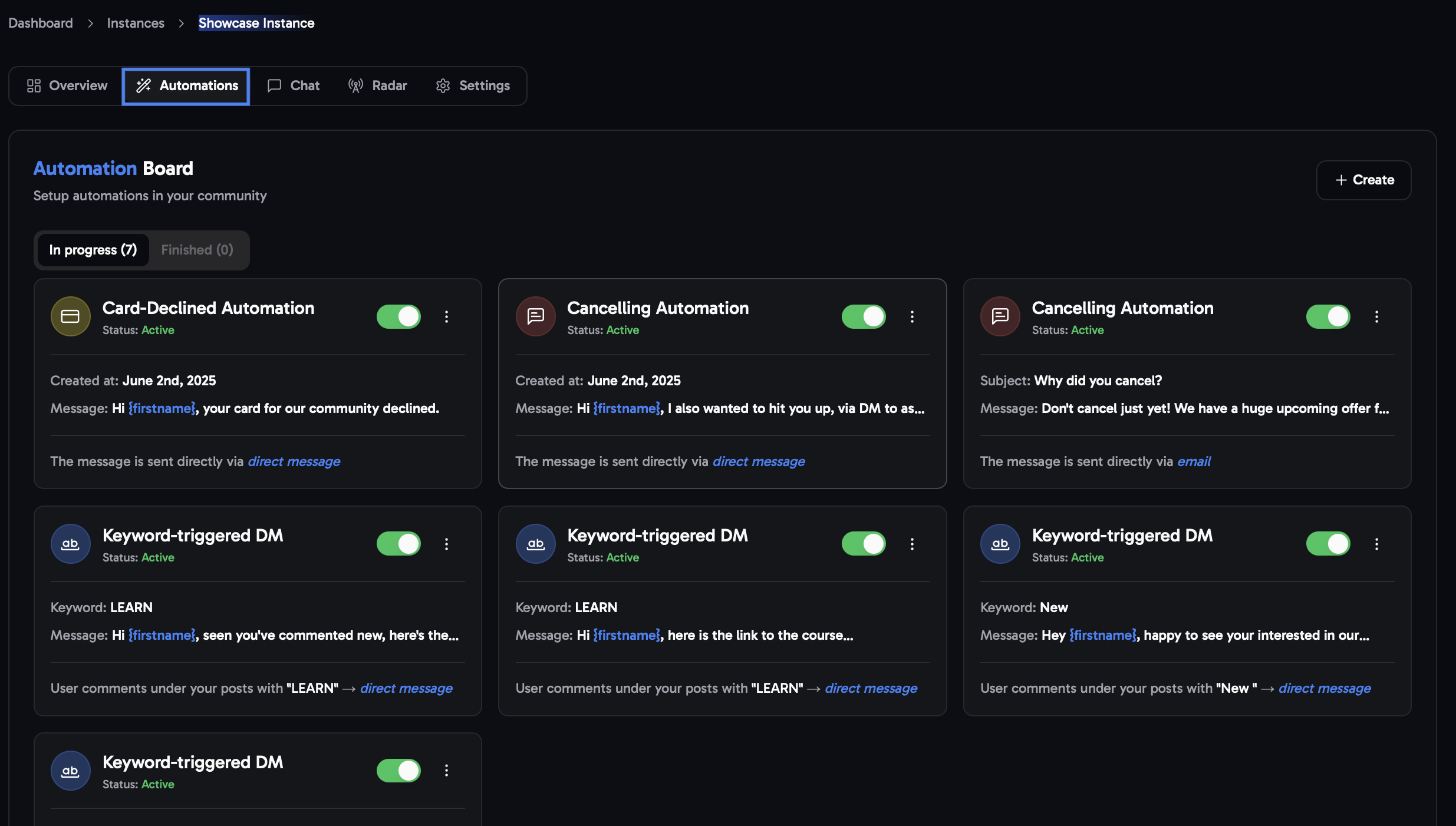 ## **Creating Automations**
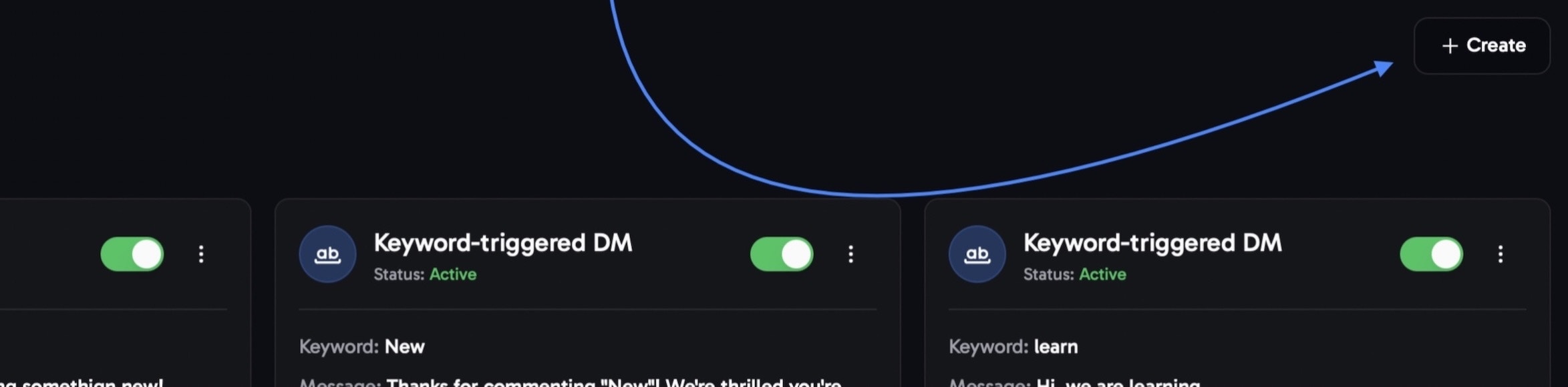
To start off head to the **Automations** tab and create click the `Create` button in the top right. If you cannot see the tab you might still be on your instance overview. To resolve this take a look at the [Quick Start](/introduction#check-the-setup)
## **Creating Automations**
To start off head to the **Automations** tab and create click the `Create` button in the top right. If you cannot see the tab you might still be on your instance overview. To resolve this take a look at the [Quick Start](/introduction#check-the-setup)
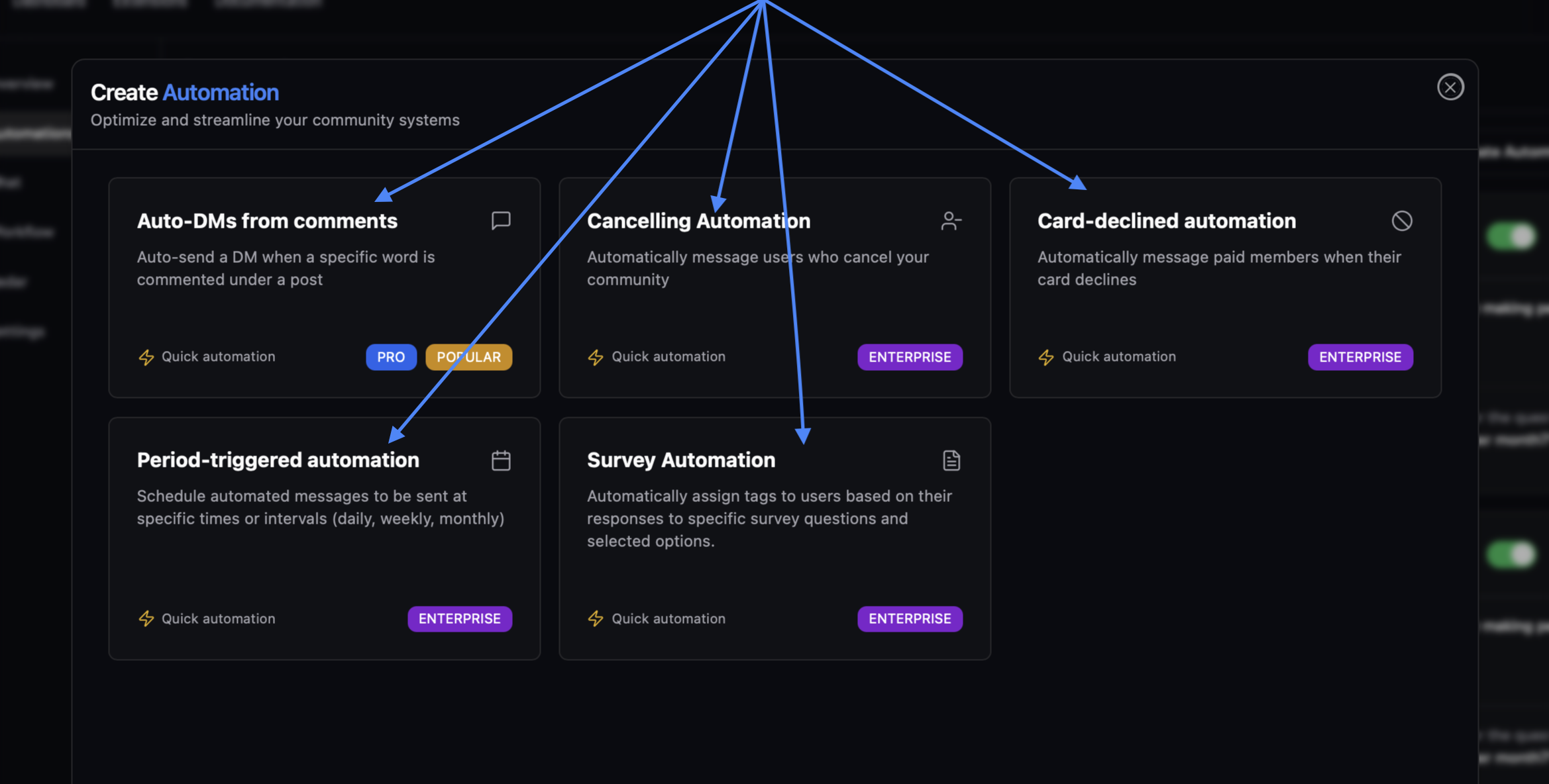
 ### You can choose from these five different options:
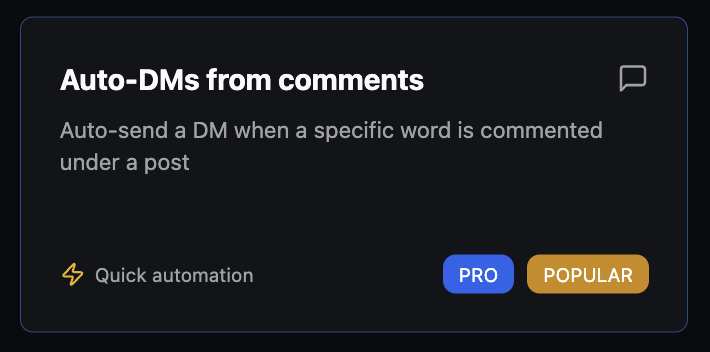
 ### **Keyword-triggered AutoDM**
This automation is always linked to a **post** and is triggered whenever someone comments with a **specific keyword**. The system detects the comment in real-time and **immediately** sends a predefined message to their inbox.
AutoDMs have multiple use cases and could be utilized for complex **onboarding** flows or simple **announcements** within your community.
### **Keyword-triggered AutoDM**
This automation is always linked to a **post** and is triggered whenever someone comments with a **specific keyword**. The system detects the comment in real-time and **immediately** sends a predefined message to their inbox.
AutoDMs have multiple use cases and could be utilized for complex **onboarding** flows or simple **announcements** within your community.
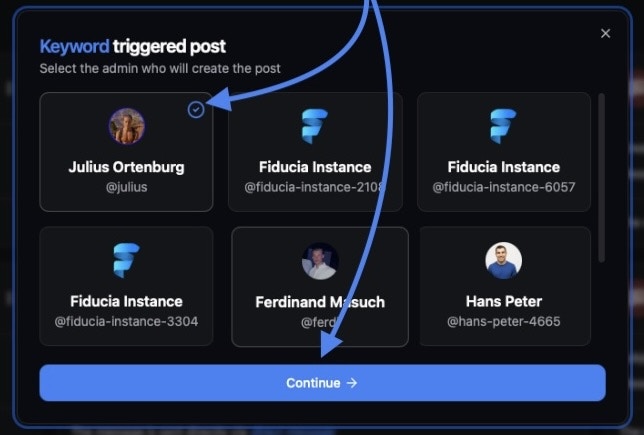 Set the **'keyword'** users should comment to trigger an automatic direct message. \
If desired, **assign a tag** to be **applied to all users** who comment with this keyword.
By creating a **dedicated tag**, you can keep your leads ****organized and easily filterable**** within the system - making follow-up and lead tracking more efficient.
Set the **'keyword'** users should comment to trigger an automatic direct message. \
If desired, **assign a tag** to be **applied to all users** who comment with this keyword.
By creating a **dedicated tag**, you can keep your leads ****organized and easily filterable**** within the system - making follow-up and lead tracking more efficient.
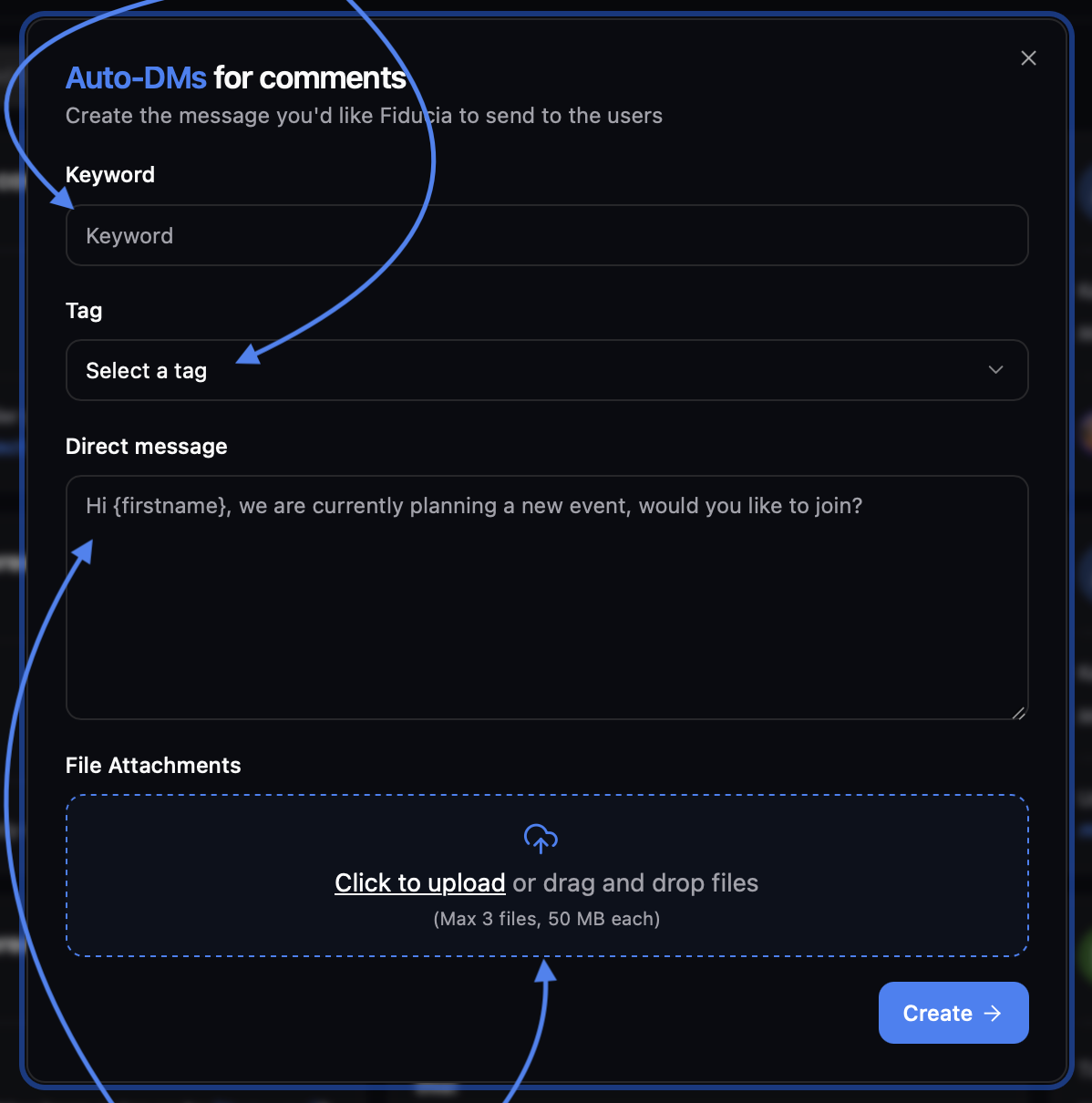 **Compose** your automated **'direct message'** for users who commented the selected keyword. It's also possible to **upload a file** to include in the message (e.g., a video link or PDF).
You can use `{firstname}` or `{lastname}` to personalize the message with each recipients' name. At runtime, Fiducia will then replace these variables to create individual messages.
The keyword is not case sensitive, meaning `learn` and `LEARN` is equivalent.
After **finalizing your message**, click **'Create'** to **activate the automation.**
**Compose** your automated **'direct message'** for users who commented the selected keyword. It's also possible to **upload a file** to include in the message (e.g., a video link or PDF).
You can use `{firstname}` or `{lastname}` to personalize the message with each recipients' name. At runtime, Fiducia will then replace these variables to create individual messages.
The keyword is not case sensitive, meaning `learn` and `LEARN` is equivalent.
After **finalizing your message**, click **'Create'** to **activate the automation.**
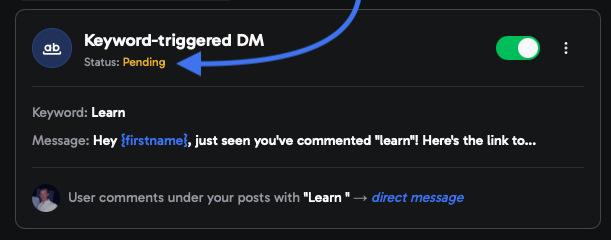 This automation is **'pending'** until the selected admin ********publishes thelinked post.********
The post should contain the keyword, so the reader knows exactly what to comment. An example post could include:\
`Comment the word "LEARN" to receive a link to my new course.`
Not sure it’s set up right? Comment the keyword yourself to test if you get the message.
This only works with an account that isn’t connected to the community, as you can’t send a message to yourself.
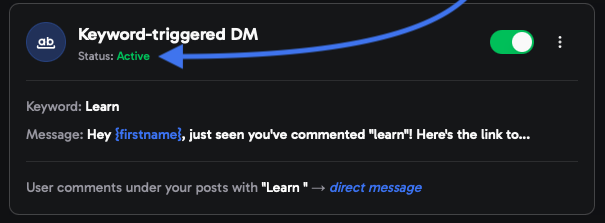
After creating the associated post, the automation should appear as active ✅
This automation is **'pending'** until the selected admin ********publishes thelinked post.********
The post should contain the keyword, so the reader knows exactly what to comment. An example post could include:\
`Comment the word "LEARN" to receive a link to my new course.`
Not sure it’s set up right? Comment the keyword yourself to test if you get the message.
This only works with an account that isn’t connected to the community, as you can’t send a message to yourself.
After creating the associated post, the automation should appear as active ✅
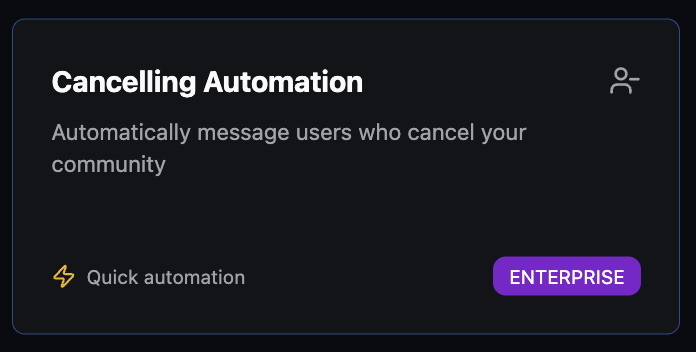
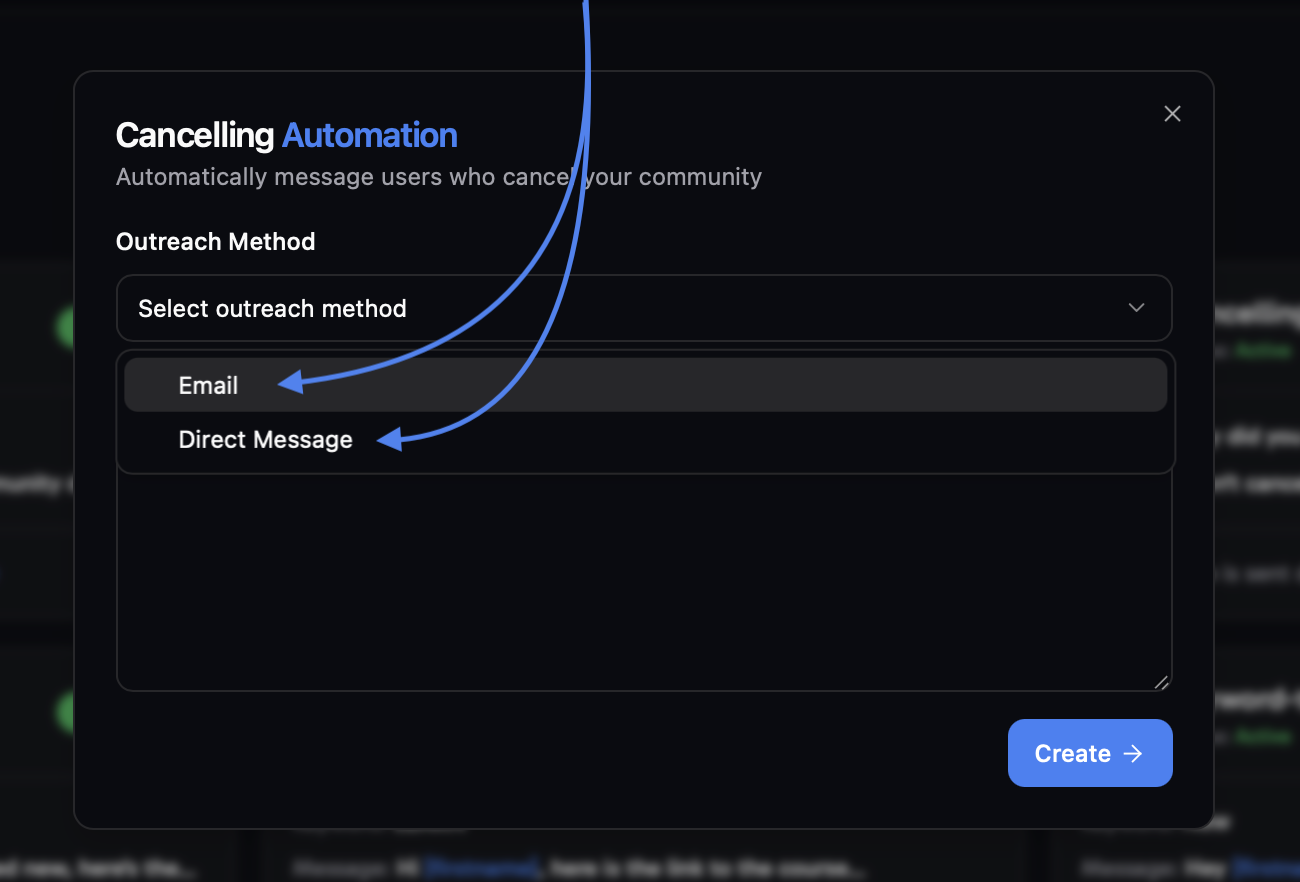 You can also set up automations for both **email** and **direct messages** through Skool.
In order to set up both, create two separate automations for cancellations.
### Choose between these two outreach strategies:
Make sure to fill out both the **'Subject'** and **'Message'** fields.
You can also set up automations for both **email** and **direct messages** through Skool.
In order to set up both, create two separate automations for cancellations.
### Choose between these two outreach strategies:
Make sure to fill out both the **'Subject'** and **'Message'** fields.
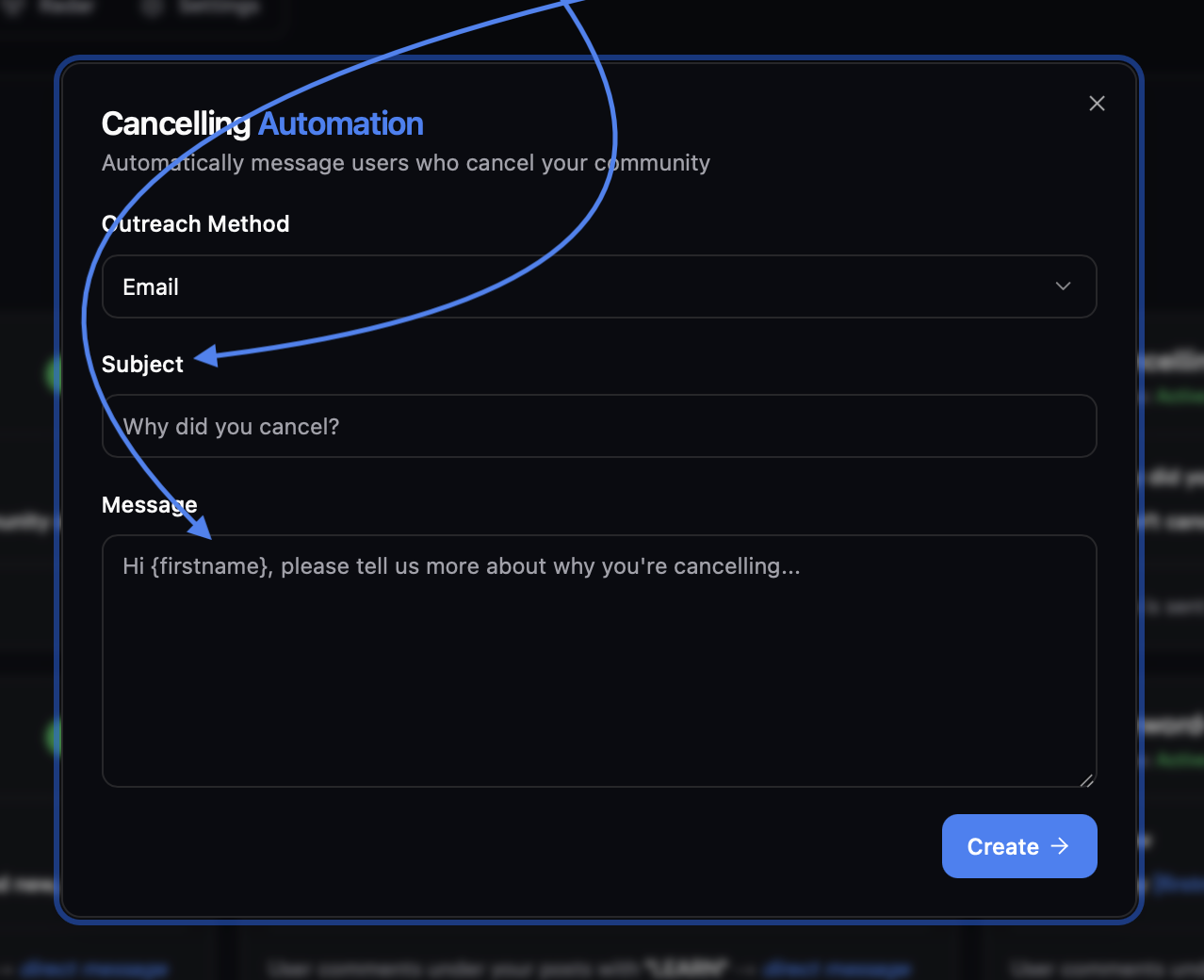 After **finalizing your message**, click **'Create'** to **activate the automation.**
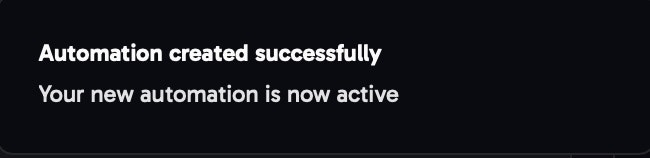
After clicking “**Save settings**,” this pop-up should appear in the **bottom right corner. ✅**
After **finalizing your message**, click **'Create'** to **activate the automation.**
After clicking “**Save settings**,” this pop-up should appear in the **bottom right corner. ✅**
 Fill out the **'Message'** field to compose your **Direct Message.**
You can use `{firstname}` or `{lastname}` to personalize the message with each recipients' name.
Fiducia replaces each placeholder with the recipient’s name.
Fill out the **'Message'** field to compose your **Direct Message.**
You can use `{firstname}` or `{lastname}` to personalize the message with each recipients' name.
Fiducia replaces each placeholder with the recipient’s name.
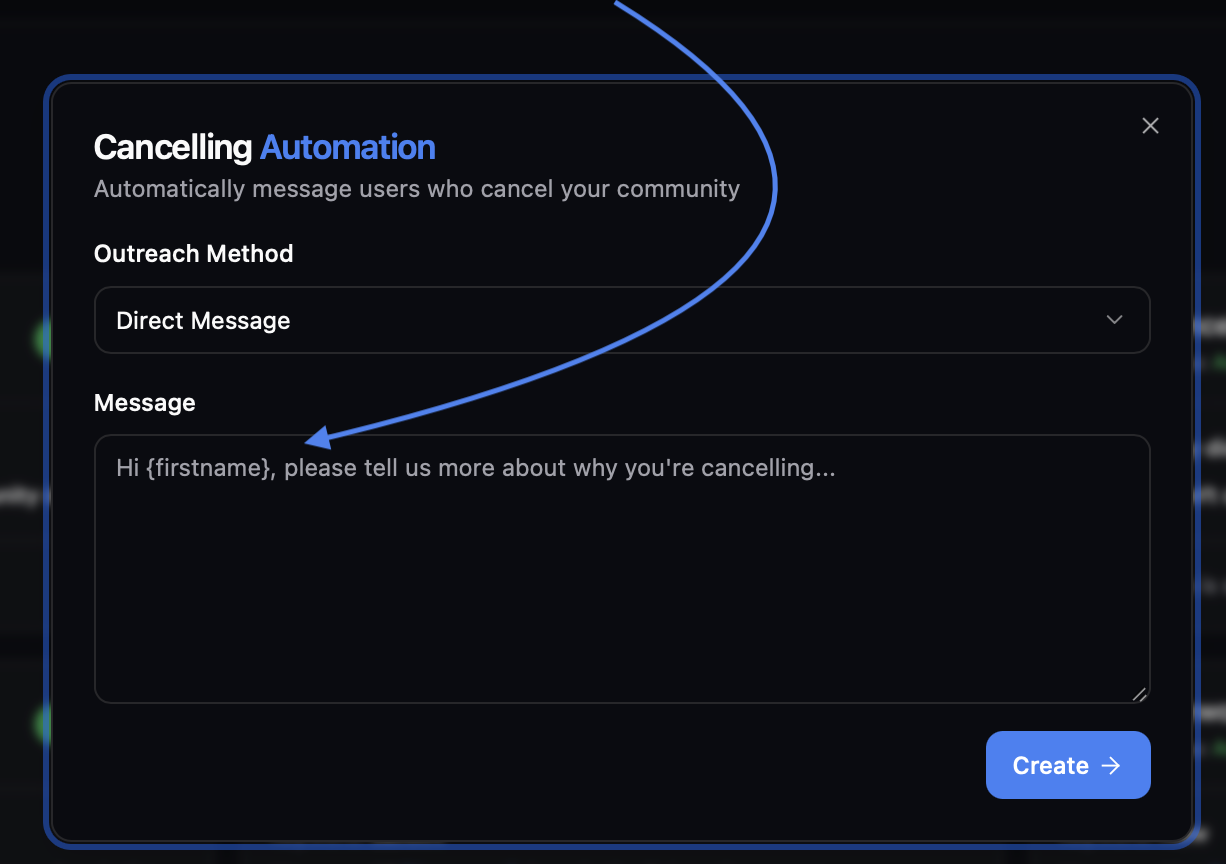 After **finalizing** your message, click **'Create'** to ****activate the automation****
After clicking “**Save settings**,” this pop-up should appear in the **bottom right corner. ✅**
You can **disable** the automation anytime with the **green toggle**, or **delete** it using the ****three dots on thetop right.****
After **finalizing** your message, click **'Create'** to ****activate the automation****
After clicking “**Save settings**,” this pop-up should appear in the **bottom right corner. ✅**
You can **disable** the automation anytime with the **green toggle**, or **delete** it using the ****three dots on thetop right.****
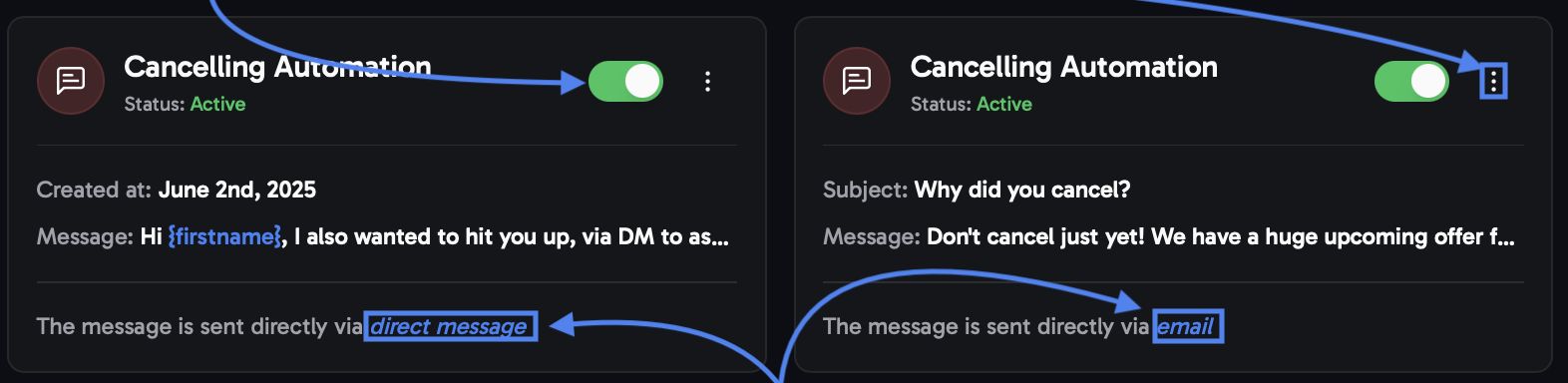 The **message method** is displayed at the bottom.
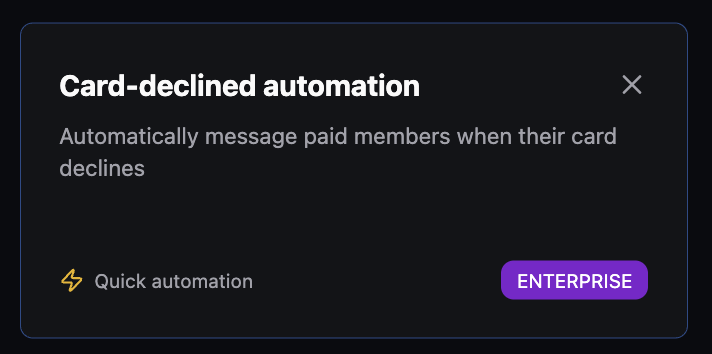
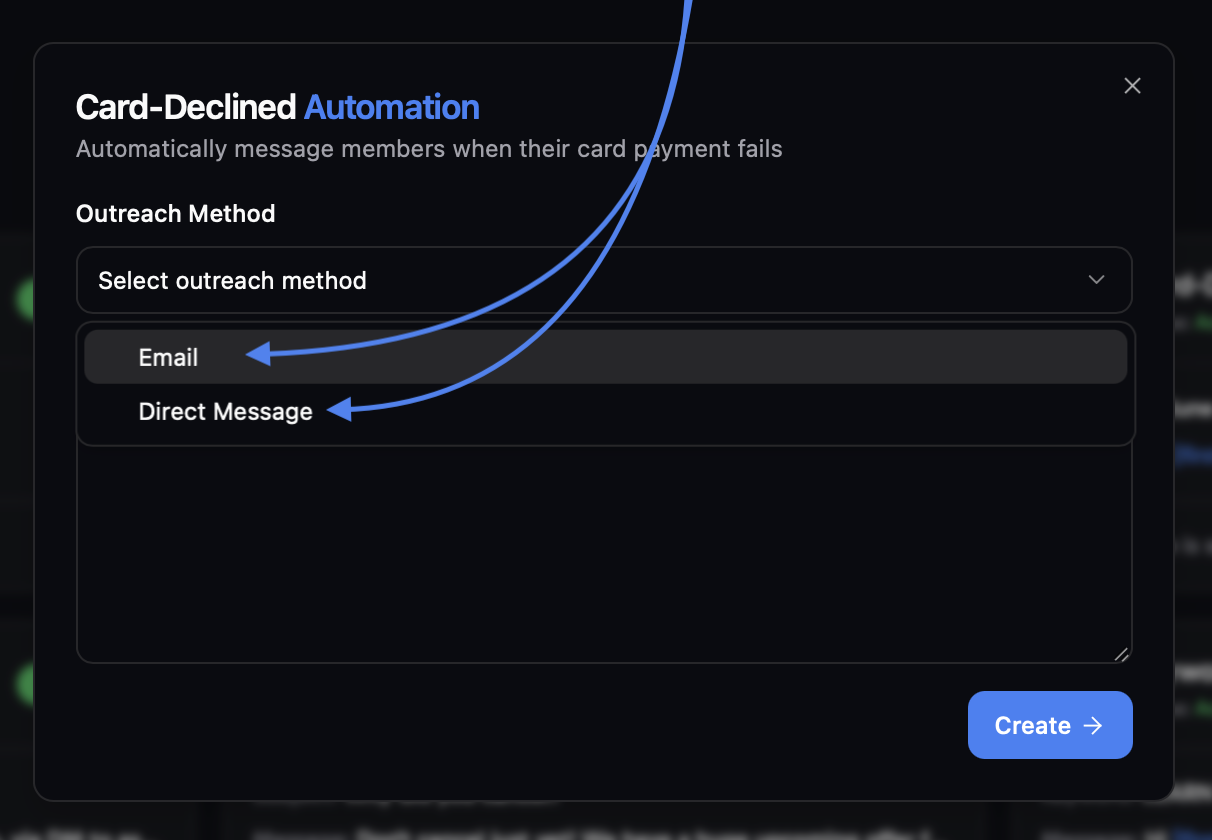 You can also set up automations for both **email** and **direct messages** through Skool.
In order to set up both, create two separate automations for cancellations.
### Choose between these two outreach strategies:
Make sure to fill out both the **'Subject'** and **'Message'** fields.
You can also set up automations for both **email** and **direct messages** through Skool.
In order to set up both, create two separate automations for cancellations.
### Choose between these two outreach strategies:
Make sure to fill out both the **'Subject'** and **'Message'** fields.
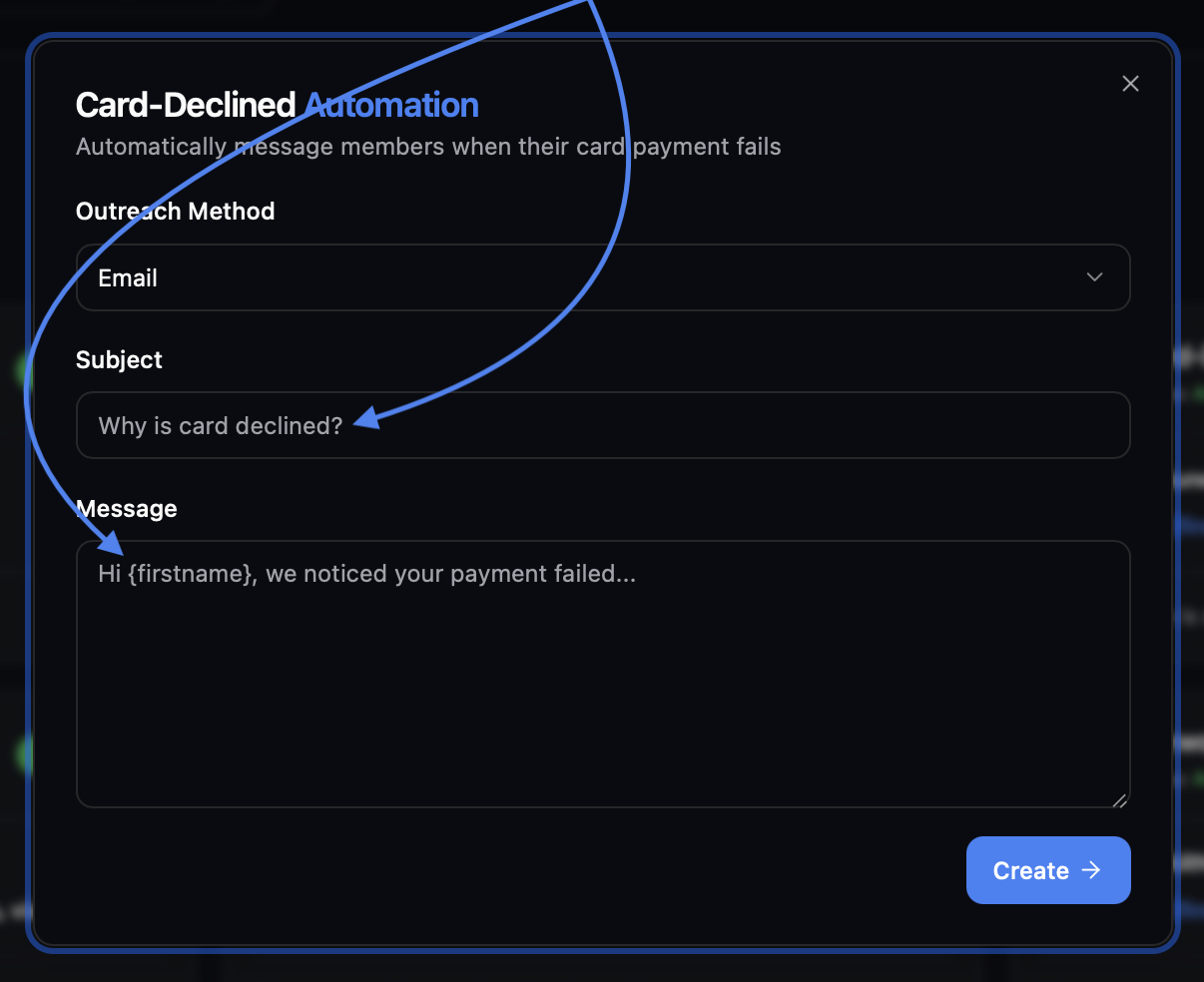 After **finalizing your message**, click **'Create'** to ****activate theautomation.****
After clicking “**Save settings**,” this pop-up should appear in the **bottom right corner. ✅**
Fill out the **'Message'** field to compose your **Direct Message.**
You can use `{firstname}` or `{lastname}` to personalize the message with each recipients' name.
Fiducia replaces each placeholder with the recipient’s name.
After **finalizing your message**, click **'Create'** to ****activate theautomation.****
After clicking “**Save settings**,” this pop-up should appear in the **bottom right corner. ✅**
Fill out the **'Message'** field to compose your **Direct Message.**
You can use `{firstname}` or `{lastname}` to personalize the message with each recipients' name.
Fiducia replaces each placeholder with the recipient’s name.
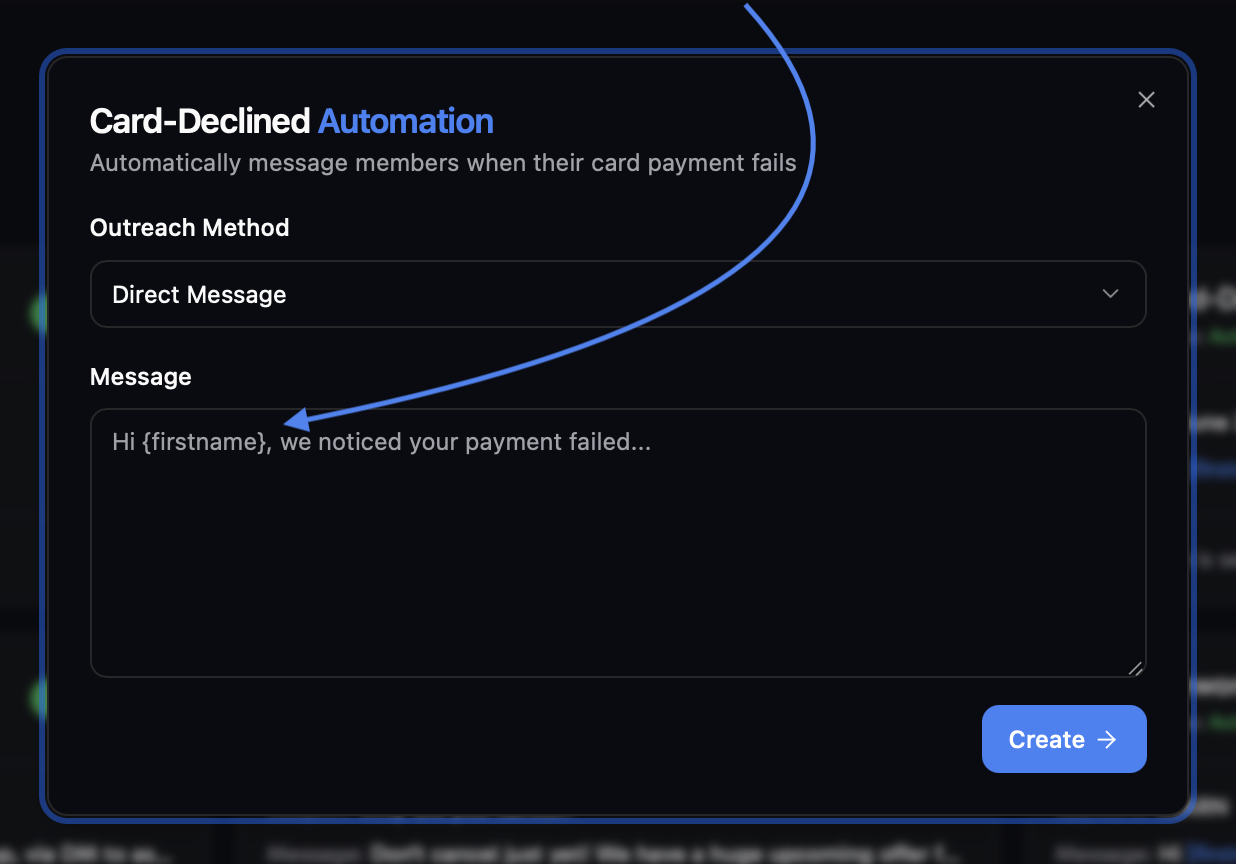 After **finalizing** your message, click **'Create'** to **activate the automation**
After clicking “**Save settings**,” this pop-up should appear in the **bottom right corner. ✅**
You can **disable** the automation anytime with the **green toggle**, or **delete** it using the **three dots on thetop right.**
The **message method** is displayed at the bottom.
After **finalizing** your message, click **'Create'** to **activate the automation**
After clicking “**Save settings**,” this pop-up should appear in the **bottom right corner. ✅**
You can **disable** the automation anytime with the **green toggle**, or **delete** it using the **three dots on thetop right.**
The **message method** is displayed at the bottom.
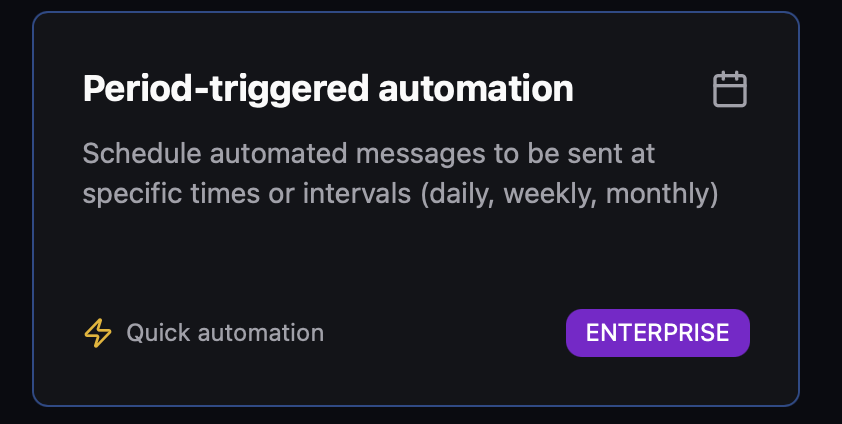
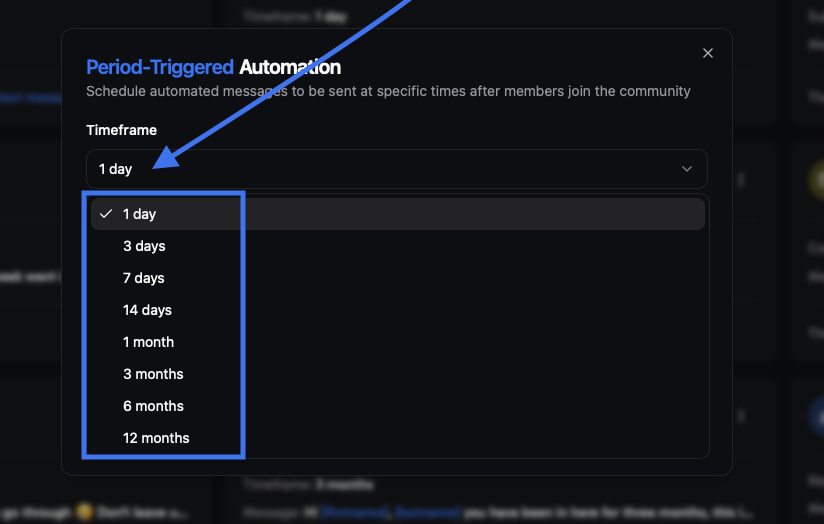 Once defined, the message will be delivered based on when members **first joined** your community
This makes it ideal for automated onboarding sequences, check-in messages, and upsells later down the line
You can of course create **multiple of these automations** f.e ater 1 day after 7 days and after 1 month
ou can use `{firstname}` or `{lastname}` to personalize the message with each recipients name.
Fiducia replaces each placeholder with the recipient’s name.
Once defined, the message will be delivered based on when members **first joined** your community
This makes it ideal for automated onboarding sequences, check-in messages, and upsells later down the line
You can of course create **multiple of these automations** f.e ater 1 day after 7 days and after 1 month
ou can use `{firstname}` or `{lastname}` to personalize the message with each recipients name.
Fiducia replaces each placeholder with the recipient’s name.
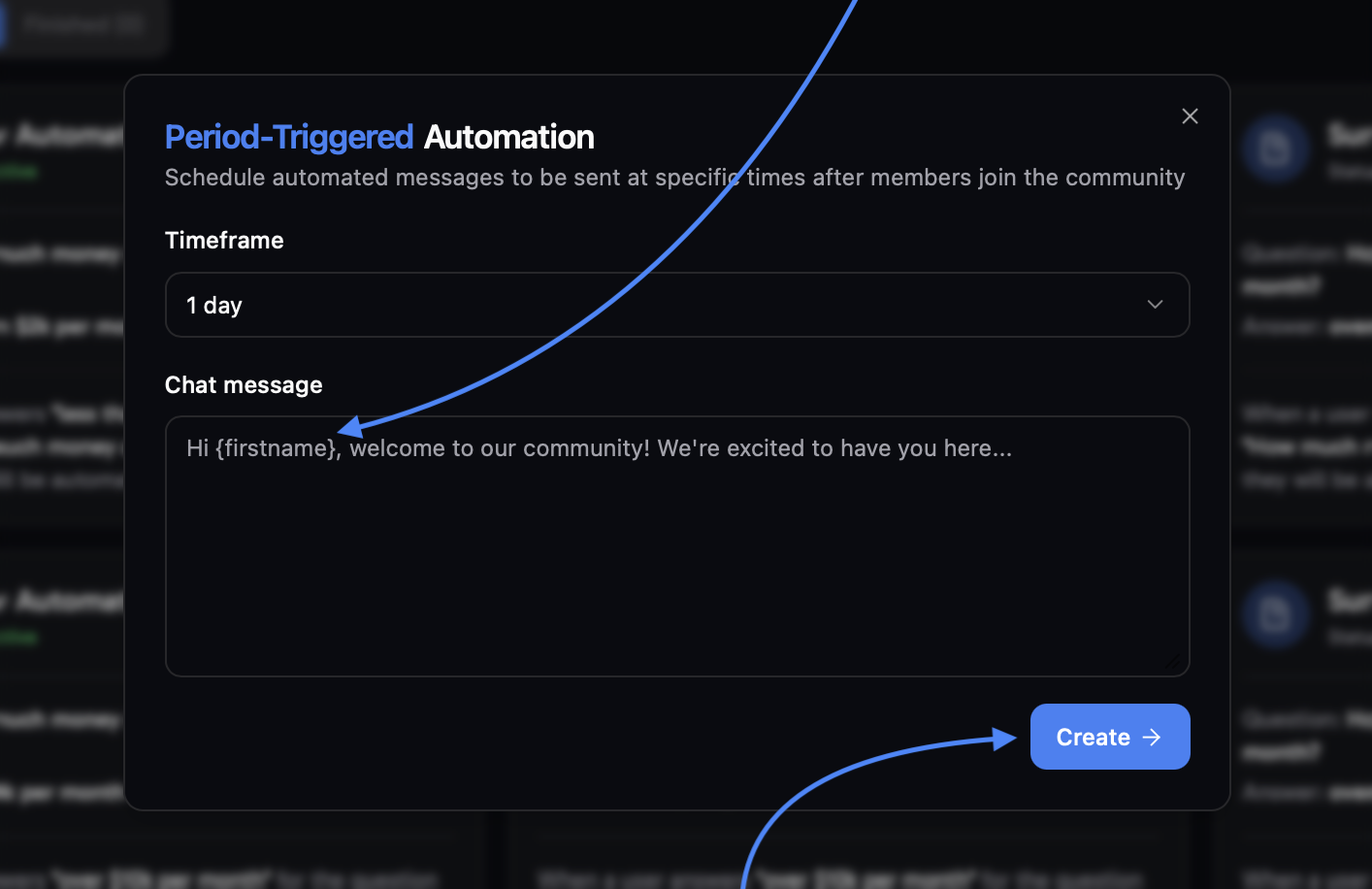 After **finalizing** your message, click **'Create'** to **activate the automation**
After clicking “**Create**,” this pop-up should appear in the **bottom right corner. ✅**
After **finalizing** your message, click **'Create'** to **activate the automation**
After clicking “**Create**,” this pop-up should appear in the **bottom right corner. ✅**
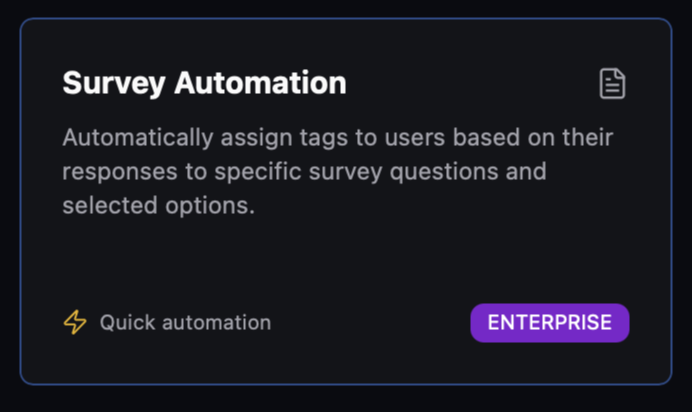
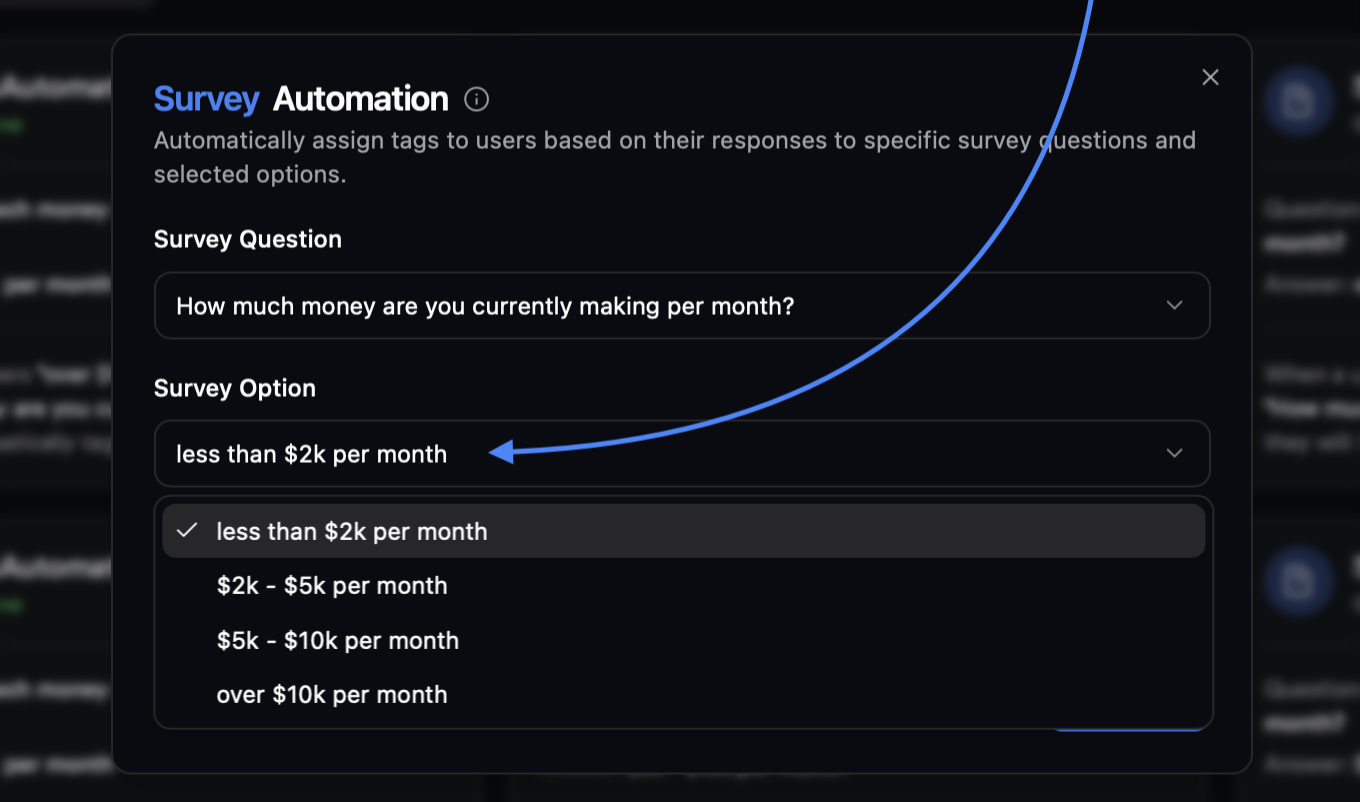
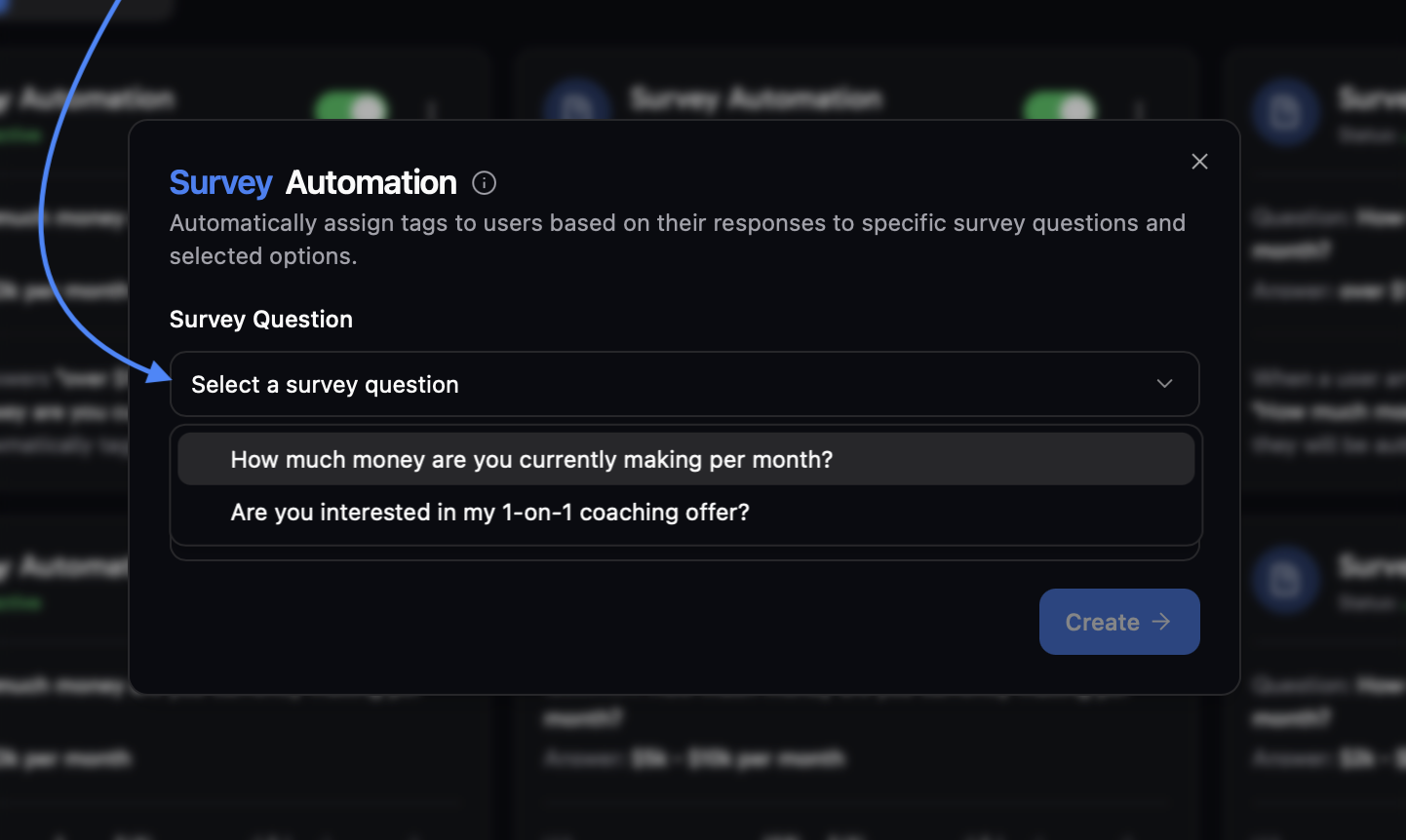 If **no options appear here**, there are no membership questions in Skool yet. \
\
To set them up go to **Skool plugins**, then **Membership Questions**, and **add a multiple choice question** with **several answer options.**
Tip: Here’s an **example of a great use case** for this automation.
Tip: Here’s an **example of a great use case** for this automation.
If **no options appear here**, there are no membership questions in Skool yet. \
\
To set them up go to **Skool plugins**, then **Membership Questions**, and **add a multiple choice question** with **several answer options.**
Tip: Here’s an **example of a great use case** for this automation.
Tip: Here’s an **example of a great use case** for this automation.
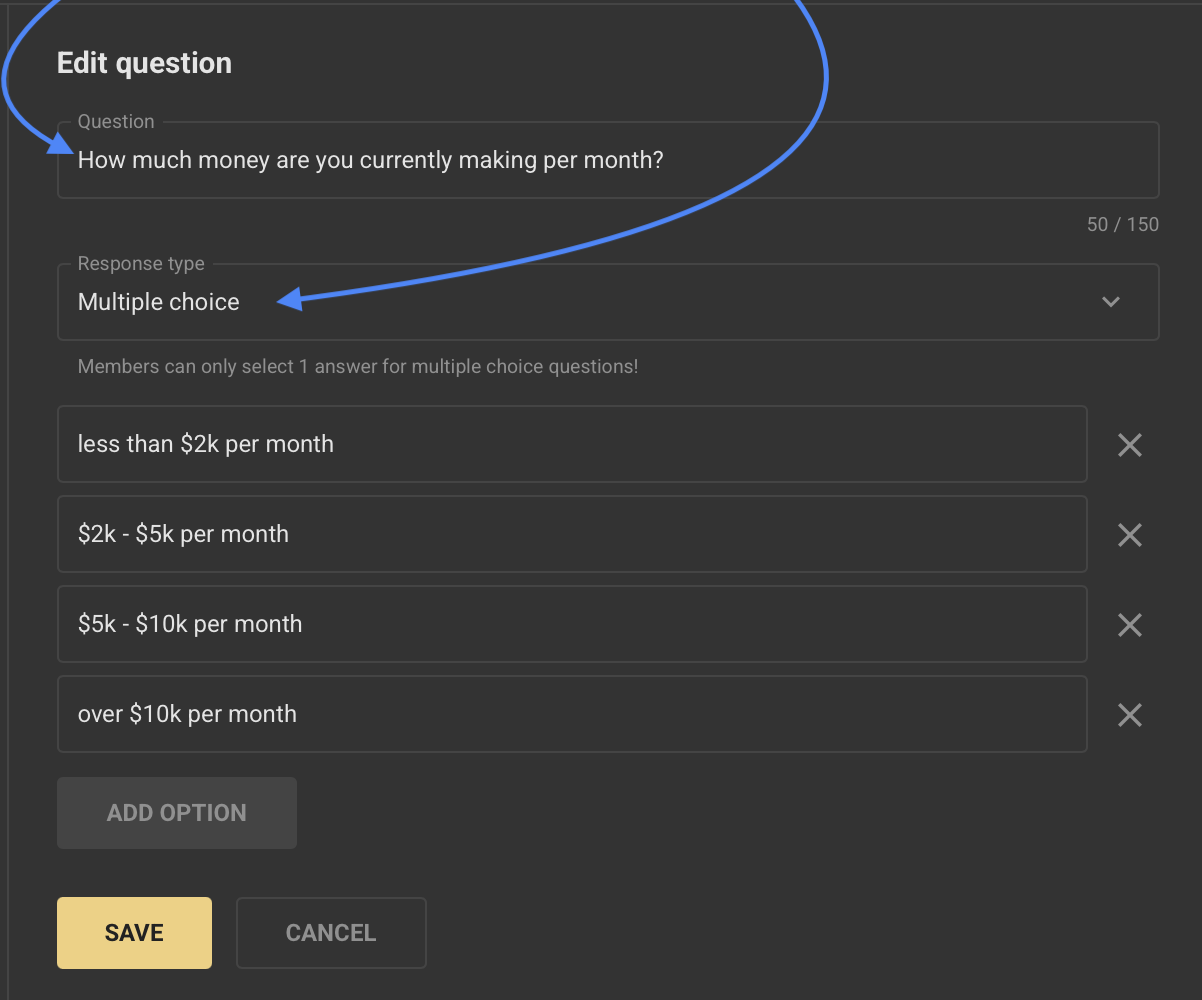
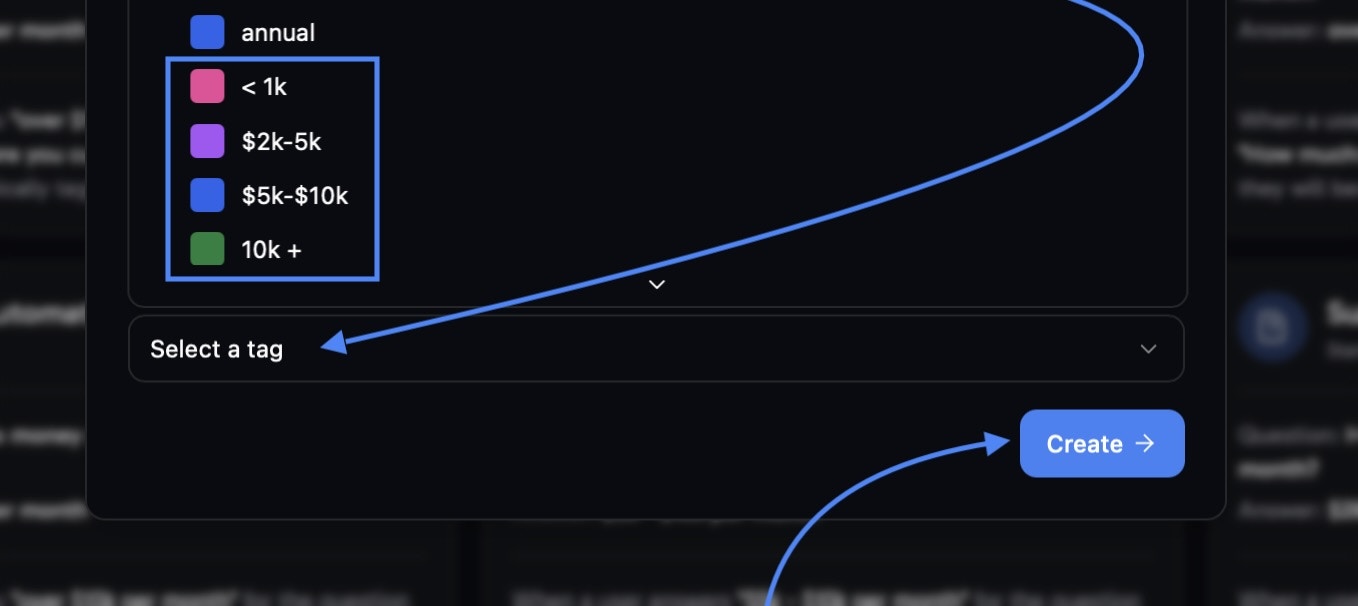 If your**tag doesn’t appear here** , you’ll need to **create it first**. Go to the Chat section, open Chat Settings, and create the tag there to use it in automations.”
After **finalizing**, click **'Create'** to **activate the automation**
After clicking “**Create**,” this pop-up should appear in the **bottom right corner. ✅**
If you can’t access the Period or survey automations, you're on the Pro plan, which has limitations. You can upgrade anytime by reaching out [here](mailto:support@fiducia.gg).
If any issues occurred with installing the tool, please check if you missed any of the steps, or contact us [**here**](mailto:support@fiducia.gg) for further support.
If your**tag doesn’t appear here** , you’ll need to **create it first**. Go to the Chat section, open Chat Settings, and create the tag there to use it in automations.”
After **finalizing**, click **'Create'** to **activate the automation**
After clicking “**Create**,” this pop-up should appear in the **bottom right corner. ✅**
If you can’t access the Period or survey automations, you're on the Pro plan, which has limitations. You can upgrade anytime by reaching out [here](mailto:support@fiducia.gg).
If any issues occurred with installing the tool, please check if you missed any of the steps, or contact us [**here**](mailto:support@fiducia.gg) for further support.